Choose 4K video editing software by testing playback first, not by reading the feature list. If your editor cannot play your footage smoothly, handle your camera’s codec, use your GPU, and export clean files without random color shifts, every fancy effect becomes a liability. The best choice is the one that fits your footage, your computer, and your delivery format.
TLDR: Pick 4K editing software that supports your camera codecs, offers proxy workflows, uses hardware acceleration, and exports to ProRes, DNxHR, H.264, H.265, or AV1 with clear bitrate controls. For example, a creator editing 10 minutes of 4K 10 bit H.265 footage may see export time drop from 42 minutes to 16 minutes when GPU encoding and proxies are set up correctly. In small team tests, proxy editing often cuts dropped frames by 60% to 80% on mid range laptops. Do not buy software until you test a real clip from your camera.
Start with your footage, not the software brand
4K video is not one single thing. A 4K clip from a smartphone, cinema camera, drone, mirrorless camera, and screen recorder can behave very differently. Resolution matters, but codec, bit depth, chroma subsampling, and frame rate often matter more.
A 4K 24 fps ProRes file may edit like butter. A 4K 60 fps H.265 10 bit 4:2:2 file may bring the same computer to its knees. Honestly, it feels like a trap when two files both say “4K” but one plays smoothly and the other stutters every three seconds.
Before choosing an editor, check whether it supports the formats you actually shoot:
- H.264: Common, compact, easy to share, moderate editing performance.
- H.265 or HEVC: Smaller files, great quality, harder to decode.
- ProRes: Large files, excellent for editing, common on Macs and cinema workflows.
- DNxHR: A strong editing codec for Windows and cross platform projects.
- AV1: Efficient and modern, but editing support still varies.
- RAW formats: Powerful color control, heavy storage and processing needs.
Playback performance is the real test
A good 4K editor should let you scrub, trim, and preview without constant lag. This depends on the software engine, your hardware, and whether the program creates optimized media or proxies.
Proxies are lower resolution copies of your clips. You edit with them, then export from the original files. This is one of the simplest ways to make 4K editing less painful. If the software makes proxy creation confusing, expect to waste time on setup instead of cutting the video.
Look for these playback features:
- Proxy editing: Ideally automatic, with easy switching between proxy and original media.
- Optimized media: Transcodes camera footage into a smoother editing codec.
- Adjustable preview resolution: Half, quarter, or custom playback quality.
- Timeline caching: Pre-renders heavy effects, titles, and color grades.
- Background rendering: Processes clips while you keep working.
Test playback with your hardest footage. Use a clip with motion, color correction, titles, and a few cuts. If the software drops frames with only a basic grade applied, it will struggle on a real project.
Hardware acceleration can save your schedule
Hardware acceleration lets your GPU or media engine help decode, render, and export video. Without it, your CPU carries too much of the load. That can mean hot fans, slow previews, and export times that feel absurd.
On Windows, look for support for NVIDIA NVENC, AMD VCN, and Intel Quick Sync. On Apple Silicon Macs, check how well the editor uses the Media Engine for H.264, H.265, and ProRes.
Hardware acceleration affects four key areas:
- Decoding: Reading the footage during playback.
- Effects processing: Handling blur, scaling, noise reduction, sharpening, and transitions.
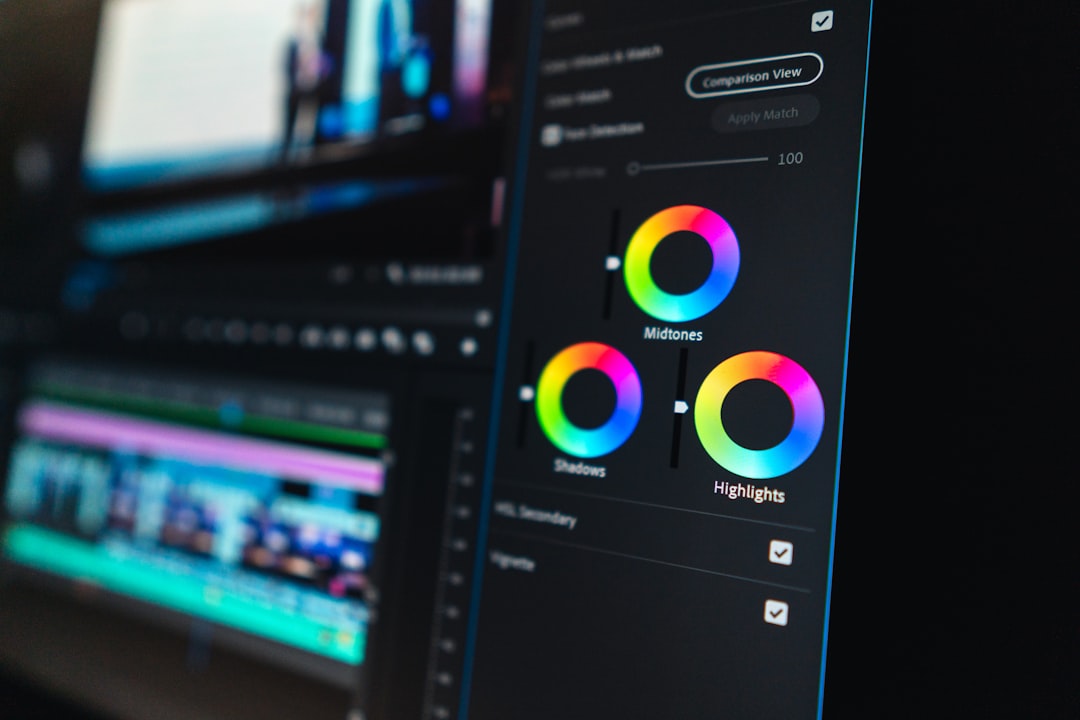
- Color grading: Applying LUTs, curves, masks, and correction nodes.
- Encoding: Creating the final export file.
Do not assume all GPU support is equal. Some editors accelerate timeline effects very well but fall behind during export. Others export fast but stutter while editing. Trial versions are useful here. Run a five minute project through the full process.

Match the software to your computer
For 4K editing, hardware requirements are not just marketing fluff. A weak part in the chain can slow the whole job.
Minimum comfort zone for 4K editing:
- CPU: Modern 6 core processor or better.
- RAM: 16 GB for light edits, 32 GB or more for serious work.
- GPU: Dedicated GPU with at least 6 GB VRAM for effects heavy timelines.
- Storage: SSD for media and cache. HDDs are best for backup, not active editing.
- Display: Accurate color matters if you deliver paid work.
If you edit multicam 4K, 10 bit footage, RAW, or long documentaries, raise those numbers. 64 GB RAM is not excessive for large projects. Fast external SSDs also help when working across laptops and desktops.
It drives me crazy that some editors hide cache settings in strange menus. Cache files can eat hundreds of gigabytes. Good software should let you set cache location, clear old files, and move project media without breaking links every time.
Codec support is where many editors fail
Codec support sounds boring until your editor imports video with no audio, adds a green tint, or refuses to read 10 bit files. This is common with action cameras, drones, iPhones, and screen recordings.
Check for support for 10 bit color, HDR, variable frame rate, and 4:2:2 footage. Many modern cameras record in 10 bit H.265 4:2:2. This format offers better color for grading, but it can be hard on some CPUs and GPUs.
If you work with phones, confirm that the editor handles variable frame rate video. Some apps record clips at changing frame rates to save space. That can cause audio drift. Better editors detect this or convert the clip on import.
For professional work, also check XML, AAF, EDL, LUT, and color management support. These help when moving projects between editing, sound, and color tools.
Export quality needs real controls
A great edit can be ruined by a bad export. Look for clear settings for resolution, frame rate, bitrate, color space, audio quality, and codec. If an editor only offers vague presets like “High Quality” with no details, be careful.
For online delivery, H.264 is still a safe choice. H.265 gives high quality at smaller file sizes, but playback compatibility can vary. AV1 is efficient for newer platforms, yet not every workflow supports it well. For masters, use ProRes or DNxHR when file size is less of a concern.
Useful export features include:
- Custom bitrate: Essential for balancing quality and file size.
- Two pass encoding: Slower, but often cleaner for complex footage.
- HDR export: Needed for HDR10 or HLG projects.
- Queue rendering: Export multiple versions without babysitting the app.
- Chapter markers and captions: Helpful for courses, webinars, and long videos.
Choose based on your editing style
Different users need different tools. A solo YouTuber may value speed, templates, captions, and fast social exports. A filmmaker may care more about color grading, audio round tripping, RAW support, and collaboration. A corporate editor may need stability, team projects, stock media access, and easy review exports.
Ask these questions before paying:
- Can it play my real 4K footage smoothly?
- Does it support my camera codec without conversion?
- Can I create proxies in two or three clicks?
- Does it use my GPU during playback and export?
- Can it export master files and compressed web versions?
- Are color settings predictable from import to export?
- Does the app stay stable on long timelines?
Price matters, but lost time costs more. A cheaper editor that crashes twice a day is not cheap. A powerful editor that needs a week of setup may also be a poor fit for short social videos.
Final buying advice
Download two or three candidates and build the same mini project in each. Use your own footage. Add a title, music, color correction, noise reduction, speed change, and export a 4K file. Time the export. Watch for dropped frames. Check file size and image quality.
The right 4K video editing software should feel stable, quick, and predictable. It should support your codecs, make proxies simple, use hardware acceleration properly, and give you export controls you can trust. If it does those things well, the creative work becomes much easier.