If your iPhone touch screen is not responding, responding slowly, or registering taps in the wrong place, the problem can feel urgent. The display is the main way you unlock the device, answer calls, approve payments, and access important information. A touch issue can be caused by something simple, such as moisture or a screen protector, but it can also point to display damage, software instability, battery swelling, or a failing digitizer.
TLDR: Start by cleaning and drying the screen, removing any case or screen protector, and restarting the iPhone. If the display still does not respond, update iOS, check for problematic apps, and try a force restart. If touch problems continue after software troubleshooting, back up your data and arrange professional service, especially if the phone was dropped, exposed to liquid, or shows display distortion.
Common Signs of iPhone Touch Screen Problems
Touch problems are not always the same. Identifying the exact behavior can help you decide whether you are dealing with a temporary software issue or a likely hardware fault.
- No response at all: The screen lights up, but taps and swipes do nothing.
- Intermittent response: Touch works sometimes, then suddenly stops.
- Ghost touch: The iPhone appears to tap, scroll, or open apps by itself.
- Dead zones: One area of the screen does not respond, while the rest works normally.
- Delayed response: Taps register, but only after a pause.
- Incorrect touch location: You tap one place, but the phone reacts somewhere else.
These symptoms can come from dirt, moisture, a damaged screen protector, a software crash, storage pressure, heat, impact damage, or internal display failure. The safest approach is to move from the simplest checks to more advanced fixes.
Start With the Basics: Clean and Inspect the Display
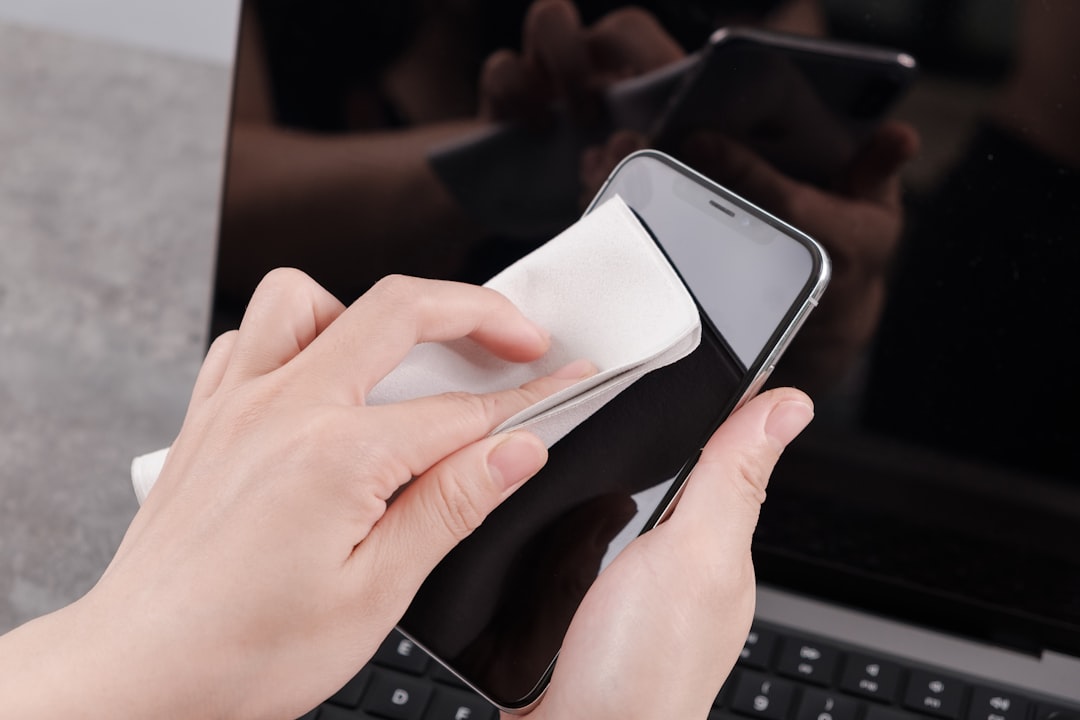
Before assuming that the iPhone needs repair, carefully inspect the screen. Oils from your hands, dust, lotion, sweat, or moisture can interfere with touch sensitivity. Even a small amount of liquid near the screen edge may cause erratic behavior.
Turn off the iPhone if possible. Use a soft, lint-free microfiber cloth and gently wipe the screen. If needed, slightly dampen the cloth with water, but do not spray liquid directly onto the device. Avoid harsh cleaners, alcohol-heavy products, compressed air, or abrasive materials, as they can damage coatings and seals.
Also check your hands. Wet fingers, gloves, or very dry skin can reduce touch accuracy. If you are using gloves, remove them unless they are designed for capacitive touch screens.
Remove the Case and Screen Protector
A tight case can press against the edges of the display, especially if it is poorly fitted or damaged. This pressure can create false touches or make parts of the screen unresponsive. Remove the case completely and test the screen again.
Next, inspect the screen protector. A cracked, lifted, dirty, or incorrectly installed protector can interfere with touch input. Tempered glass protectors can be especially problematic if dust is trapped underneath or if the adhesive has separated around the edges.
If touch performance improves after removing the protector, replace it with a high-quality protector that is compatible with your specific iPhone model. Do not continue using a protector that is cracked or lifting, as it may worsen the problem and can make the device harder to use safely.
Restart the iPhone
Many touch issues are caused by temporary software glitches. A normal restart clears active processes and can restore proper display behavior.
If the screen still responds enough to operate the phone, restart it using the standard method:
- On iPhones with Face ID, press and hold the side button and either volume button until the power slider appears.
- On iPhones with a Home button, press and hold the side button or top button until the power slider appears.
- Drag the slider, wait for the iPhone to turn off, then turn it back on by holding the side or top button.
If the screen does not respond at all, use a force restart instead. This does not erase your data, but it forces the device to reboot when it is frozen.
How to Force Restart Your iPhone
The force restart steps depend on your iPhone model. Follow the sequence carefully:
- iPhone 8 or later, including iPhone SE 2nd generation and later: Quickly press and release the volume up button, quickly press and release the volume down button, then press and hold the side button until the Apple logo appears.
- iPhone 7 or iPhone 7 Plus: Press and hold the volume down button and the side button at the same time until the Apple logo appears.
- iPhone 6s, iPhone SE 1st generation, or earlier: Press and hold the Home button and the top or side button at the same time until the Apple logo appears.
After the restart, test basic gestures: swipe between home screens, open Settings, type in Notes, and use the keyboard. If touch works normally again, the issue may have been a temporary crash. If it returns, continue troubleshooting.
Check for Heat, Cold, and Power Problems
Extreme temperatures can affect display performance. If your iPhone has been sitting in direct sunlight, in a hot car, or in very cold conditions, let it return to a normal room temperature before testing it again. Do not place it in a refrigerator or near a heater. Allow it to adjust gradually.
Power accessories can also cause erratic touch behavior. If the issue happens mainly while charging, unplug the iPhone and test the screen. Low-quality chargers, damaged cables, unstable power sources, or non-certified accessories may create interference. Use a reliable cable and power adapter, preferably one that meets Apple’s certification standards.
If the iPhone case feels unusually warm, if the battery drains quickly, or if the screen bulges away from the frame, stop using the device and seek service. A swollen battery can place pressure on the display and is a safety concern.
Update iOS
Software bugs can cause display lag, freezing, or inconsistent touch response. If you can still use the screen, check for an iOS update:
- Open Settings.
- Tap General.
- Select Software Update.
- Install any available update.
Before updating, it is best to back up your iPhone. If the touch screen is unstable, connect the device to Wi-Fi and power, then begin the update only when you can monitor the process. An update may not fix physical damage, but it can resolve system-level issues that affect responsiveness.
Look for App Related Problems
If the touch screen fails only inside one app, the display hardware may be fine. The app may be frozen, outdated, or incompatible with your current version of iOS.
Try closing the app and reopening it. If the problem continues, update the app from the App Store. You can also delete and reinstall it, but make sure important app data is backed up or synced first.
If multiple apps freeze or fail to respond, check your iPhone storage. Low storage can make the entire system unstable. Go to Settings, then General, then iPhone Storage. If storage is nearly full, remove unused apps, large videos, old downloads, and unnecessary files.
Adjust Touch Accommodations and Accessibility Settings
Some accessibility settings change how the iPhone responds to touch. These are useful for many users, but they can make the screen feel unresponsive if enabled accidentally.
Check these settings if the screen works but feels delayed or unusual:
- Open Settings.
- Tap Accessibility.
- Select Touch.
- Review Touch Accommodations, Haptic Touch, and related settings.
If Touch Accommodations is enabled, try turning it off temporarily. If Haptic Touch feels too slow, adjust its duration. These settings do not usually cause total touch failure, but they can make the phone seem less responsive.
Reset Settings Without Erasing Your Data
If the issue started after changing settings, installing apps, or updating software, you can reset system settings. This does not delete your photos, messages, or apps, but it does reset Wi-Fi networks, privacy settings, keyboard settings, location settings, and other preferences.
To reset settings, go to Settings, then General, then Transfer or Reset iPhone, then Reset, and choose Reset All Settings.
This step is worth trying when the display still works enough to navigate menus and the problem appears to be software-related. If the screen is completely unusable, you may need to connect the iPhone to a computer for backup or service options.
Back Up Your iPhone Before the Problem Gets Worse
Touch issues can start mildly and become severe. If your iPhone is still usable, back it up immediately. A backup protects your photos, messages, settings, and app data if the device requires repair or replacement.
You can back up using iCloud through Settings, your name, iCloud, and iCloud Backup. You can also back up to a Mac or Windows computer using Finder or Apple Devices for Windows, depending on your setup.
If the touch screen is not working but the iPhone powers on, you may still be able to back it up if it has previously trusted your computer. If the device has never trusted that computer, you may be blocked by the passcode prompt, which makes early backups especially important.
When Hardware Damage Is Likely
Some warning signs strongly suggest a hardware problem. Software troubleshooting may not resolve these issues:
- The iPhone was recently dropped.
- The screen is cracked, separated, discolored, or flickering.
- There are vertical lines, black spots, green tint, or display burn marks.
- Only one strip or corner of the screen does not respond.
- The phone had contact with liquid.
- The frame is bent or the display is lifting.
- Ghost touch happens even after a restart and without a case or protector.
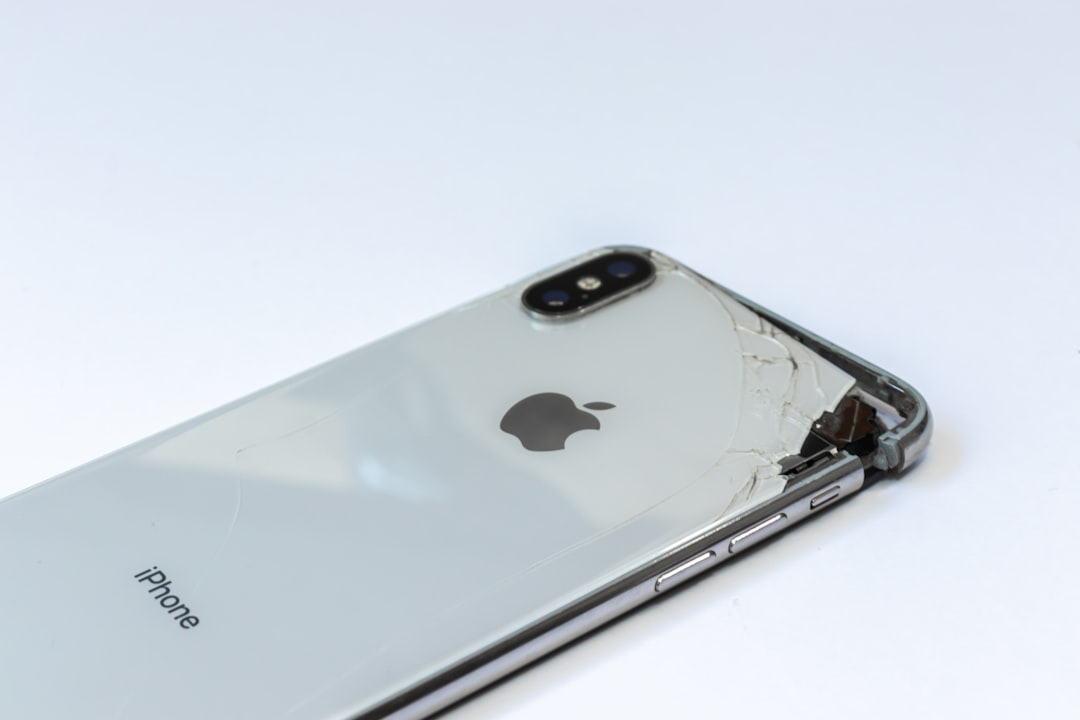
The iPhone display includes multiple layers, including the glass, display panel, and digitizer that detects touch. A screen can look mostly intact while the digitizer underneath is damaged. Internal connectors can also loosen after impact, causing intermittent touch failure.
Be Careful With Do It Yourself Repairs
It may be tempting to order a replacement screen and repair the iPhone yourself. However, modern iPhones are tightly assembled and include delicate cables, seals, sensors, and battery components. A mistake can damage Face ID, reduce water resistance, puncture the battery, or create new display problems.
If you are not experienced with electronic repairs, professional service is the safer option. Choose a qualified repair provider and ask about parts quality, warranty coverage, data handling, and whether water resistance seals will be replaced. If the iPhone is under warranty or covered by AppleCare, check your service options before authorizing any third-party repair.
What to Do If You Cannot Unlock the iPhone
If the touch screen is completely unresponsive and you cannot enter the passcode, your options are limited. Try a force restart first. Then remove accessories, clean the screen, and connect the iPhone to a charger using a trusted cable.
If nothing changes, connect it to a computer and see whether Finder or Apple Devices recognizes it. If the computer was previously trusted, you may be able to create a backup. If you cannot unlock the phone or confirm trust, you may need professional repair before accessing the data.
Avoid repeatedly entering passcodes if ghost touch is causing random taps. Too many incorrect attempts may temporarily disable the iPhone or create additional access problems.
Preventing Future Touch Screen Problems
Not every display failure can be prevented, but careful handling reduces the risk. Use a protective case that fits properly and does not press on the screen. Install a quality screen protector and replace it when it cracks or lifts. Keep the iPhone away from excessive heat, moisture, and unstable charging accessories.
It is also wise to keep iOS updated, maintain enough free storage, and back up regularly. A current backup is the best protection against data loss if the display suddenly fails.
Final Advice
An iPhone touch screen that is not working should be approached methodically. Begin with cleaning, removing accessories, restarting, and checking for software updates. If the problem is limited to one app or setting, it may be easy to correct. But if the screen has dead zones, ghost touch, visible damage, liquid exposure, or no response after a force restart, treat it as a likely hardware issue.
Do not ignore worsening touch problems. Back up your iPhone as soon as possible and arrange service if the issue persists. A timely diagnosis can protect your data, prevent further damage, and help you decide whether repair or replacement is the most sensible option.