Embedding one Monday.com worksheet into another is a common request from teams that want a single workspace for planning, reporting, and execution. In Monday.com, the closest native equivalent to a “worksheet” is usually a board, although some teams may use the term for a table view, dashboard, or Workdoc. The important point is this: Monday.com does not generally support placing one fully interactive board directly inside another board like a spreadsheet tab embedded inside a cell, but it does provide reliable ways to connect, mirror, display, and reference one worksheet from another.
TLDR: You usually cannot embed a full Monday.com worksheet directly inside another worksheet as a live nested table. The best native method is to use Connect Boards and Mirror Columns to show data from one board in another. If you need a visual embedded view, use a Dashboard or Workdoc with board widgets or embedded board views. Choose the method based on whether you need data synchronization, reporting, or simple navigation.
Understanding What “Embed” Means in Monday.com
Before setting this up, it is worth defining what you actually need. In Monday.com, “embedding” may mean one of several things:
- Displaying data from another board inside your current board.
- Linking items between two boards so related work stays connected.
- Showing a board view inside a dashboard or Workdoc.
- Creating a central overview of several worksheets without duplicating data.
If your goal is to see and manage selected fields from another worksheet, the most dependable option is Connect Boards combined with Mirror Columns. If your goal is to place a readable view of a board into a page-like document, a Workdoc or Dashboard may be more appropriate.
Option 1: Use Connect Boards and Mirror Columns
This is the most practical method when you want one Monday.com worksheet to reference another. It does not visually insert the entire worksheet, but it allows you to bring important information from one board into another while keeping the source data synchronized.
Step 1: Open the Destination Board
Start with the board where you want the information to appear. This is the worksheet that will receive linked data from another worksheet. For example, you may have a “Client Projects” board and want to show related tasks from a “Production Tasks” board.
Step 2: Add a Connect Boards Column
Click the plus icon to add a new column, then search for Connect Boards. Select the board you want to connect to. Monday.com will ask whether you want to allow connections to one board or multiple boards. For a clean structure, it is usually better to connect to one specific board unless your workflow requires multiple sources.
Step 3: Link Items Between Boards
Once the Connect Boards column is created, open a cell in that column and choose the relevant item from the connected worksheet. This creates a relationship between the item on your destination board and the item on the source board.
For example, a client project item can be linked to several production task items. This allows the project manager to see which operational tasks are associated with that project without manually copying data.
Step 4: Add Mirror Columns
After creating the connection, add a Mirror Column. This lets you display fields from the connected worksheet, such as status, owner, timeline, budget, priority, or completion date. The mirrored values update when the original board changes, which is why this method is more reliable than copying and pasting information.
Step 5: Choose the Fields to Display
Select the Connect Boards column as the source, then choose which column from the connected board you want to mirror. You can add multiple Mirror Columns if you need to show several fields. Keep the destination board focused; too many mirrored columns can make it difficult to read.
Option 2: Use a Dashboard as the Embedded Overview
If your intention is to view one worksheet inside another because you need a high-level overview, a Dashboard may be a better solution. Dashboards allow you to combine data from one or more boards using widgets such as tables, charts, timelines, batteries, calendars, and workloads.
To create this setup, open the relevant workspace and create a new dashboard. Add the source worksheet as a connected board, then choose a widget that displays the information in the format you need. A Table Widget is often the closest visual equivalent to embedding a worksheet, while charts and workload widgets are better for reporting.
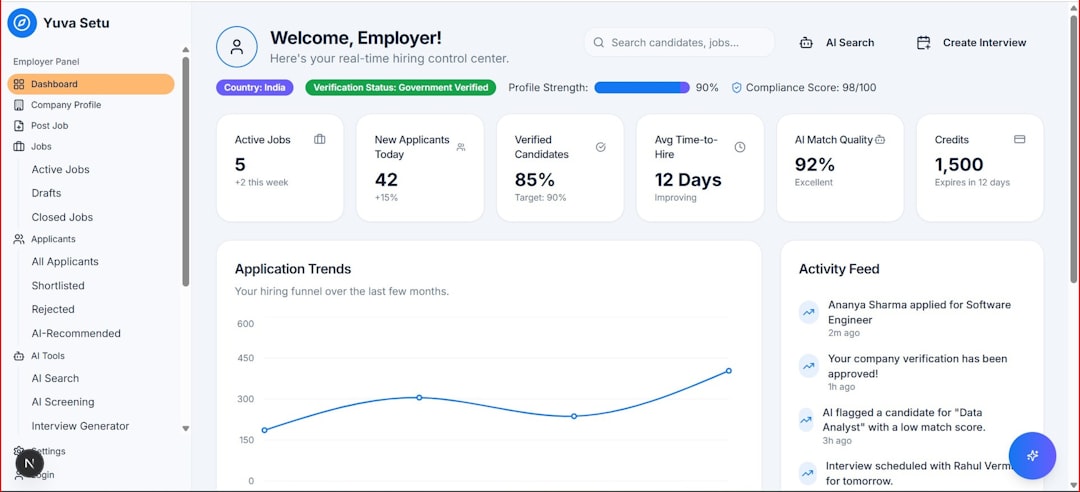
This method is especially useful for managers who do not need to edit every detail in the source worksheet but do need visibility across teams, timelines, and statuses. It also reduces the risk of cluttering operational boards with too much secondary information.
Option 3: Embed a Board View in a Monday Workdoc
If you want a document-style page that contains a worksheet view, consider using a Monday Workdoc. Workdocs can include live components and references to boards, making them useful for meeting notes, project briefs, operating procedures, and status pages.
To use this approach, create or open a Workdoc, then insert a board or board-related block using the available insert options in Monday.com. Depending on your account features and permissions, you may be able to display a board view, table, or widget-like element inside the document. This is not the same as embedding a board inside another board, but it is often the cleanest way to combine narrative context with live work data.
When Not to Embed or Mirror Data
Although linking boards is powerful, it should be used carefully. Avoid creating overly complex structures where every board depends on several others. Too many connections can make a workflow harder to maintain and more confusing for users who simply need to update their tasks.
You should also avoid mirroring data when users need to edit the field directly from the destination board. Mirror Columns are primarily for displaying information from the source board. If team members need to change the value, they should usually open the connected item or work directly in the source worksheet.
Permissions and Access Considerations
Permissions are important when connecting Monday.com worksheets. If a user does not have access to the source board, they may not be able to see mirrored data or open linked items. Before rolling out the setup, confirm that the right people have access to both the destination and source boards.
For sensitive workflows, use board permissions, column permissions, or private boards where appropriate. A connected structure should improve visibility without exposing confidential information unnecessarily.
Recommended Setup for Most Teams
For most business workflows, the best setup is simple:
- Create a clear source board where the original work is managed.
- Create a destination board where related information needs to appear.
- Add a Connect Boards column to link relevant items.
- Add Mirror Columns for only the most important fields.
- Use a Dashboard if you need broader reporting or visual summaries.
Final Thoughts
While Monday.com does not typically allow a full worksheet to be embedded directly inside another worksheet in the way some users might expect, it offers strong alternatives for connected work management. Connect Boards and Mirror Columns are the most reliable options for synchronized data, while Dashboards and Workdocs are better for visual presentation and reporting.
The right choice depends on your goal. If you need operational data to stay connected, use linked boards and mirrored fields. If you need a management overview, use a dashboard. If you need a page that combines explanation and live work context, use a Workdoc. By choosing the proper structure, you can create a trustworthy, maintainable Monday.com workflow without duplicating information or confusing your team.