If you’re encountering Nightreign Error Code 30005, you’re likely facing frustrating interruptions when attempting to launch the game. This error typically stems from issues with the Easy Anti-Cheat system (EAC), a third-party tool responsible for maintaining game integrity and preventing cheating. While the error might seem intimidating, rest assured—it can be fixed quickly and efficiently by following a few structured steps.
TL;DR
Nightreign Error Code 30005 generally indicates a problem with the Easy Anti-Cheat engine, often caused by corrupted files, conflicting background applications, or missing permissions. Resolving it usually involves verifying the game files, repairing EAC, and running the game with administrative privileges. Follow the troubleshooting guide below to get back into the game fast.
What Is Nightreign Error Code 30005?
Error 30005 is a failure in initializing the Easy Anti-Cheat system bundled with Nightreign. It often shows the message: “Failed to Start the Game (Error Code: 30005)”. This indicates that the game’s anti-cheat measure either failed to load a protected file or encountered interference from another application, error-prone system files, or access privileges.
The issue is not unique to Nightreign and has been widely reported in other EAC-enabled games as well. While this should be fixed by the developers eventually, there are proven user-side solutions that can help resolve the problem.
Common Causes of Error Code 30005
- Corrupted Easy Anti-Cheat Files: A corrupted EAC installation is the most common culprit.
- Missing Access Privileges: Lack of administrative rights can prevent EAC from executing properly.
- Background Software Conflict: Security software or conflicting background processes can block EAC components.
- Corrupted Game Files: Damaged core files in your Nightreign installation can trigger EAC failures.
- Disk Write Protection: Write-protected or full storage drives may prevent EAC from functioning as intended.
Quick Fixes to Resolve Error Code 30005
1. Restart the System
Sometimes the simplest fix is the most effective. A fresh reboot clears out lingering background tasks that may interfere with EAC. Always do this before diving into deeper troubleshooting.
2. Run Nightreign and Launcher As Administrator
Right-click your Nightreign game launcher and select “Run as administrator”. This grants the necessary system access to run EAC modules.
- Navigate to the executable file (usually found in your installation folder).
- Right-click and select “Properties” → Go to “Compatibility” tab.
- Check the box for “Run this program as an administrator.”
- Click “Apply” and “OK.”
3. Repair Easy Anti-Cheat
This is one of the most effective ways to solve Error Code 30005.
- Open your Nightreign installation directory.
- Navigate to “EasyAntiCheat” folder.
- Double-click EasyAntiCheat_Setup.exe.
- From the dropdown menu, select “Nightreign” as the game.
- Click on “Repair Service.”
- Once complete, restart your system.

4. Verify Nightreign Game Files
If any game files are damaged or missing, EAC will not initialize correctly.
- For Steam users:
- Open Steam Library.
- Right-click on Nightreign > Properties > Installed Files.
- Click “Verify integrity of game files.”
- For Epic Games users:
- Open Epic Games Launcher.
- Navigate to Library, find Nightreign.
- Click the three dots menu and choose “Verify.”
- Navigate to C:\Program Files (x86)\EasyAntiCheat
- Locate EasyAntiCheat.sys and delete it.
- Then, re-run EasyAntiCheat_Setup.exe as described earlier and choose “Repair.”
- Antivirus software (temporarily disable for testing)
- VPN clients
- Overlay applications (e.g., Discord, GeForce Experience)
- Update graphics card drivers via NVIDIA/AMD platforms.
- Navigate to Windows Settings → Update & Security → Check for updates.
- Uninstall Nightreign completely from your system.
- Navigate manually to the folder C:\Program Files (x86)\EasyAntiCheat and delete any remaining files.
- Reinstall Nightreign through your chosen launcher and allow it to reinstall all dependencies (including EAC).
- Always run launchers and games as administrator.
- Keep your system updated (Windows, drivers, DirectX).
- Avoid installing cracked or conflicting software that could interfere with anti-cheat processes.
- Configure antivirus exceptions for both Nightreign and EAC folders.
- Regularly verify the integrity of game files after updates or crashes.
- Game Login ID or Account username
- Screenshot or exact text of the error message
- Steps you’ve already attempted
- System information (OS, hardware specs, antivirus software)
This process could take a few minutes. Any missing or corrupted files will be re-downloaded.
5. Delete the EasyAntiCheat.sys File
Corrupt .sys files can prevent EAC from launching.
6. Disable Third-Party Background Applications
Disable or fully close background software that could be interfering with EAC. These could be:
Re-enable them one by one after resolving the issue, if necessary.
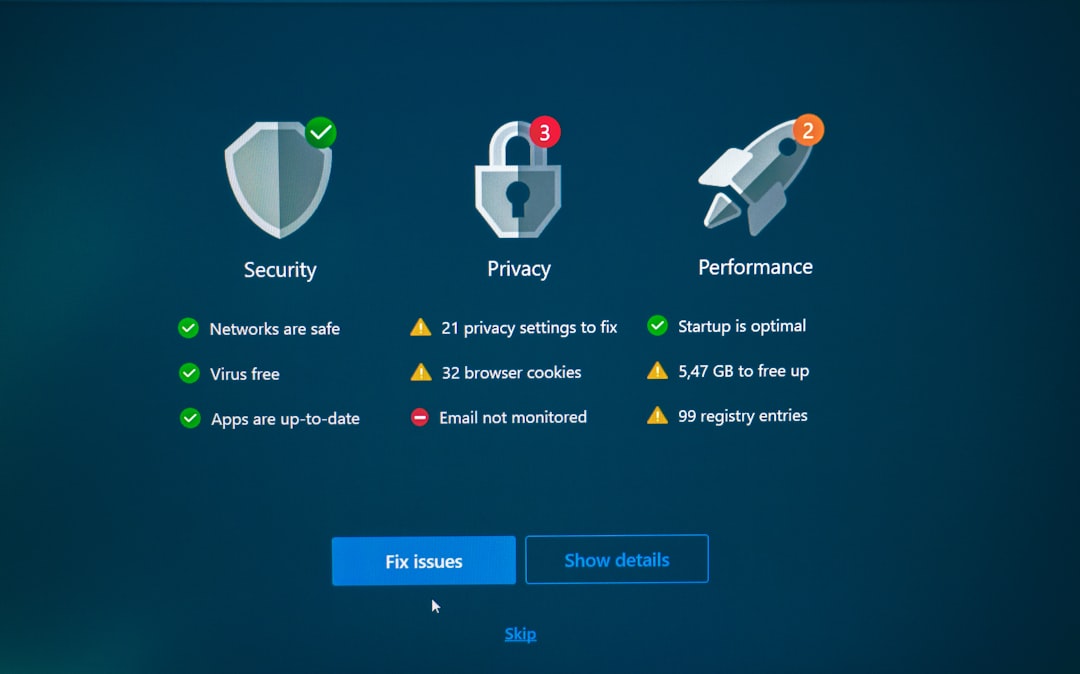
7. Free Up Disk Space
Having limited or zero write access due to a full hard drive can contribute to Error 30005. Free up at least 5–10 GB of space and ensure your drive isn’t marked as read-only.
8. Update Your Drivers and Windows
Out-of-date system drivers or Windows versions can cause compatibility issues.
If All Else Fails: Reinstall Nightreign and EAC
If none of the options above resolve the issue, a fresh reinstallation may be required.
Make sure nothing interrupts the installation process and avoid using the system for other tasks during installation.
Preventing Future EAC Errors
To ensure that Nightreign and other EAC-enabled games function smoothly, follow these general best practices:
When to Contact Support
If you’ve tried all the above solutions without success, it’s time to contact official support. Provide them detailed information including:
Nightreign’s support team may ask you to send log files or perform deeper system diagnostics, so be prepared for a more technical back-and-forth.
Conclusion
Nightreign Error Code 30005 can be a major roadblock for players, but in nearly all cases, it is resolvable with clear troubleshooting steps. Whether it’s verifying your game files, repairing Easy Anti-Cheat, or adjusting system settings, these methods are both safe and effective. Follow the guide above and in most cases, you’ll be ready to return to the world of Nightreign in no time.
For future prevention, maintain your system well and always take care when dealing with third-party applications. If the issue recurs frequently, consider adjusting how background software interacts with your game environment.