Run legacy systems in a virtual machine with networking disabled, snapshots enabled, and shared folders tightly controlled. That is the safest way to use Windows XP, Windows 98, old Linux releases, or older macOS tools without putting your main computer at risk. Windows XP stopped receiving regular security updates on April 8, 2014, so treating it like a live modern system is a bad idea [source: Microsoft].
TLDR: Use VirtualBox on Windows, Linux, or Intel Macs when you want a simple PC-style virtual machine. Use UTM on modern Macs, especially Apple Silicon, when you need to emulate older x86 systems like Windows XP. For example, if a museum has 12 old catalog discs and only 2 still run on Windows 11, a locked-down XP virtual machine can recover access without exposing the network. Keep the VM offline, take a snapshot before each session, and delete risky changes instead of trying to clean them up.
Pick the right tool first
VirtualBox is the easier choice for many users. It works well for Windows XP, Windows 2000, Windows 98, DOS, and older Linux systems on standard Intel or AMD PCs. It has a clear interface, good snapshot tools, and simple storage settings. It is also free.
UTM is often the better choice on macOS. It uses QEMU and can run both virtualized and emulated systems. On Apple Silicon Macs, this matters. Windows XP was made for x86 processors, so UTM usually has to emulate that hardware. Expect it to feel slower. Honestly, it feels like the same install takes minutes longer than it should, but it often works when other options do not.
Use clean installation media
Start with a real disc, a clean ISO, or media from a trusted archive. Do not download random “pre-activated” virtual machines. That is asking for malware. Keep your license keys documented. If the system belongs to a business, check old purchase records before you reinstall.
Create a new VM and choose the closest matching operating system type. For Windows XP, assign modest resources:
- RAM: 512 MB to 2 GB is usually enough.
- Disk: 10 GB to 40 GB is fine for most old apps.
- CPU: 1 core is safer for very old systems.
- Graphics: keep 3D acceleration off unless you truly need it.
The goal is not maximum speed. The goal is stable, controlled operation.
Keep the guest isolated
This is the part people skip, and it drives me crazy. A Windows XP VM with full internet access is not “retro.” It is exposed. Malware built years ago still works, and modern sites may break the browser in seconds.
For the safest setup, use these rules:
- Disable networking unless the software absolutely needs it.
- If networking is needed, use host-only mode instead of full internet access.
- Turn off shared clipboard between host and guest.
- Turn off drag and drop unless you need it for a short task.
- Use one temporary shared folder for file transfer, then disable it.
- Scan moved files on the host with current security software.
VirtualBox documents several network modes, including NAT and host-only, and those settings change how exposed your VM is [source: Oracle VirtualBox Manual]. For old systems, less access is better.
Use snapshots like a safety net
Snapshots are one of the main reasons to use a virtual machine. Install the operating system. Install drivers. Activate software if needed. Apply any trusted service packs. Then take a snapshot called Clean install.
Before testing old software, take another snapshot. If the installer breaks the system, revert. Do not waste an hour trying to repair a damaged XP registry unless you enjoy pain.
A simple snapshot plan works well:
- Base OS: fresh install, no extra software.
- Patched OS: service packs and safe drivers installed.
- App test: before installing unknown old software.
- Working state: after confirming the app runs correctly.
Be careful with Guest Additions and tools
VirtualBox Guest Additions can improve mouse control, display size, and shared folders. They are useful, but they also create tighter contact between the guest and host. Install them only if you need the features. Disable extras you do not use.
UTM has similar helper tools for some systems, but support varies. Older operating systems can be picky. Expect to waste time on display drivers, mouse capture, and CD mounting. Keep notes as you go. Future you will thank you.
Build a safe file transfer routine
Old systems often need files from the host. Do not keep a permanent open bridge. Use a short, repeatable process:
- Create a folder named VM Transfer on the host.
- Copy only the files needed for the task.
- Attach it to the VM as read-only when possible.
- Copy results out to a second folder.
- Scan the results before opening them on the host.
- Disconnect the shared folder when done.
If you must move old documents, prefer plain formats where possible. Export TXT, CSV, TIFF, or PDF from the legacy software. These are easier to open later and less tied to one dead program.
Other legacy systems need the same care
The same method works for Windows 95, Windows 98, DOS, OS/2, Solaris, BSD, and old Linux distributions. The details change. The safety rules do not. Keep them offline. Limit shared access. Use snapshots. Store installers and license notes in a clean archive.
Image not found in postmeta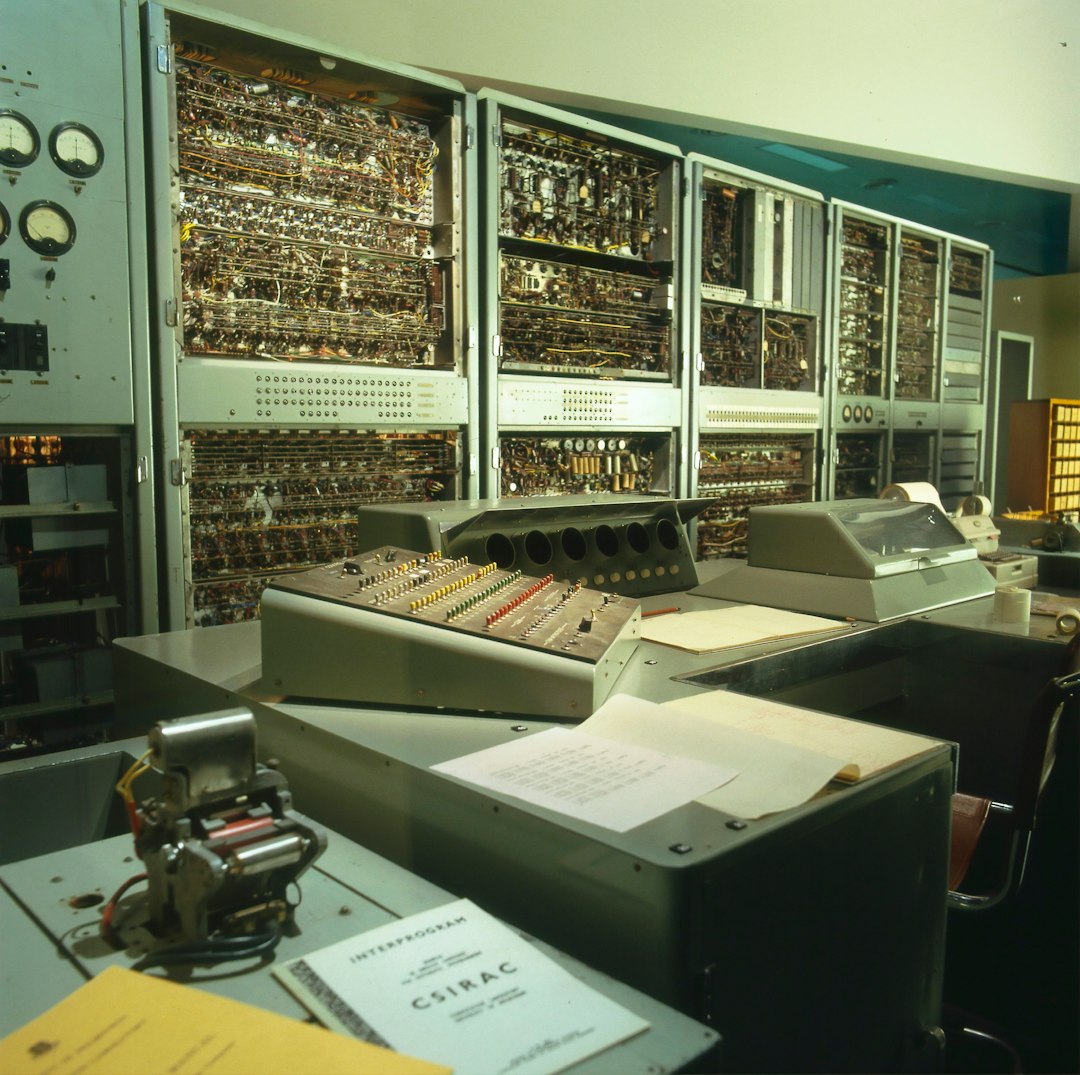
Final safety checklist
- Use VirtualBox for a simple setup on standard PC hardware.
- Use UTM for macOS, especially Apple Silicon Macs.
- Do not browse the web from Windows XP or similar systems.
- Disable networking unless there is a clear need.
- Take snapshots before installing anything.
- Limit shared folders and scan every exported file.
- Keep backups of VM files and installation media.
Used this way, VirtualBox and UTM can keep old software useful without turning your main computer into a soft target. Treat every legacy VM as untrusted. Give it only what it needs, and no more.