Find My iPhone is Apple’s security and location feature that helps locate, lock, or erase a lost device. It also enables Activation Lock, which prevents another person from using the iPhone without the Apple ID credentials attached to it. When an iPhone is being sold, repaired, recycled, or transferred to someone else, Find My iPhone often needs to be turned off, and this can be done from a computer in certain situations.
TLDR: To turn off Find My iPhone from a computer, the account holder should sign in to iCloud.com with the Apple ID connected to the iPhone, open Find Devices, select the iPhone, and remove it from the account if it is offline. If the device is online, it may need to be erased first before it can be removed. The Apple ID password is required, and removing the device disables Activation Lock for that iPhone.
What “Turning Off Find My iPhone From a Computer” Means
Turning off Find My iPhone from a computer does not always work the same way as switching it off directly on the iPhone. On the device itself, a person can go to Settings, open the Apple ID profile, choose Find My, and disable it with the Apple ID password. From a computer, however, the process usually means removing the iPhone from the Apple ID account through iCloud.
This is important because Find My iPhone is tied to Activation Lock. If the iPhone remains linked to the Apple ID, a new owner or repair technician may be unable to activate or set up the device. Removing it properly from iCloud releases that lock.

Before Starting
Before attempting to disable Find My iPhone from a computer, the account holder should have the following ready:
- The Apple ID email address used on the iPhone.
- The Apple ID password for that account.
- Access to two-factor authentication, if Apple requests a verification code.
- The correct device name, especially if several Apple devices are linked to the same account.
If the Apple ID password is unknown, the account holder will need to reset it through Apple’s account recovery process before removing the device. Without the correct credentials, Find My iPhone cannot be turned off, because that would defeat the purpose of Activation Lock.
Method 1: Remove the iPhone From iCloud.com
The most common way to turn off Find My iPhone from a computer is through Apple’s iCloud website. This method is especially useful when the device is no longer in the account holder’s possession, has been sold, or cannot be accessed directly.
- On a computer, the account holder should open a browser and go to iCloud.com.
- They should sign in with the Apple ID that is connected to the iPhone.
- After signing in, they should open Find Devices.
- They should select the iPhone from the list of devices.
- If the iPhone is offline, they can choose Remove from Account.
- They should confirm the action when prompted.
Once the iPhone is removed from the account, Find My iPhone is no longer active for that device. This also removes Activation Lock, allowing another person to set it up with a different Apple ID.
If the iPhone Is Online
If the iPhone is online, iCloud may not immediately show the option to remove it from the account. In that case, the account holder may need to erase the device first. This is common when the phone still has an internet connection and is communicating with Apple’s servers.
To proceed, the account holder can select the iPhone in Find Devices and choose Erase This Device. This will remotely erase the iPhone, deleting its content and settings. After the erase is completed, the option to remove the device from the account should become available.
Important: Erasing the iPhone deletes its data. If the device is still in the person’s possession and the data has not been backed up, they should create a backup before using this option. However, if the device has already been sold or given away, erasing it remotely is often the safest step.
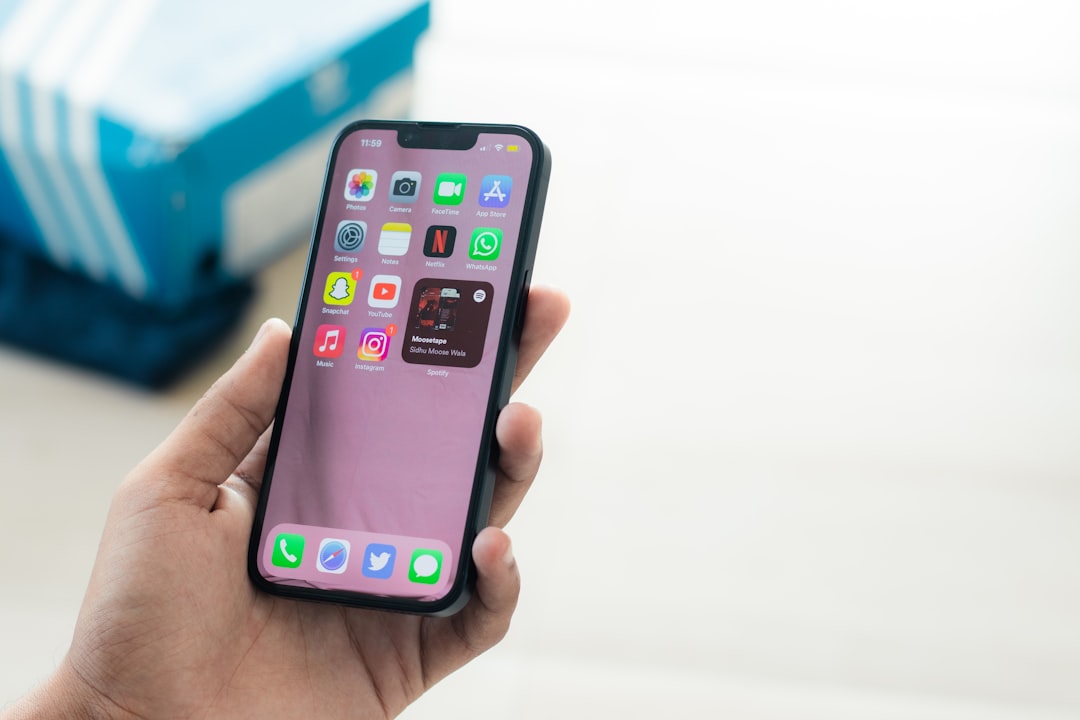
Method 2: Use the Find My App on a Mac
A Mac can also be used to manage Find My devices, but this option depends on the version of macOS and the account being signed in. If the Mac is signed in with the same Apple ID, the account holder can open the Find My app and review the list of devices.
- The account holder should open the Find My app on the Mac.
- They should click the Devices tab.
- They should select the iPhone from the device list.
- If available, they can use the option to remove or manage the device.
In many cases, iCloud.com remains the more reliable method for removing an iPhone from an account, especially when the phone is not nearby.
When the Device Was Sold or Given Away
If an iPhone was sold or handed to someone else without turning off Find My iPhone first, the previous owner should remove it from their iCloud account as soon as possible. The new owner may see an Activation Lock screen asking for the previous Apple ID and password. The previous owner should not share the password. Instead, they should remove the device remotely from iCloud.
After removal, the new owner may need to restart the iPhone or begin setup again. In some cases, they may need to erase the device before activation becomes available.
When the iPhone Is Lost or Stolen
If the iPhone is lost or stolen, removing it from the account should be considered carefully. As long as Find My iPhone remains active, the owner can locate it, mark it as lost, display a message, or erase it remotely. Removing it from the account disables those protections.
For a stolen iPhone, it is usually better to use Lost Mode or Erase This Device rather than immediately removing it from the account. Once the device is removed, Activation Lock is disabled, which may make it easier for someone else to use or resell the iPhone.

Common Problems and Fixes
- The iPhone does not appear in iCloud: The account holder may be signed in with the wrong Apple ID, or Find My may already be disabled on that device.
- Remove from Account is not visible: The iPhone may still be online. The account holder may need to erase it first or wait until it goes offline.
- Verification code cannot be received: Apple’s account recovery options may be required if trusted devices or phone numbers are unavailable.
- The new owner still sees Activation Lock: The device may need to be restarted, erased again, or connected to the internet so Apple’s servers can update its status.
Final Thoughts
Turning off Find My iPhone from a computer is mainly done by signing in to iCloud and removing the iPhone from the Apple ID account. The process is simple when the correct Apple ID credentials are available, but it is intentionally secure to prevent theft and unauthorized access. Before removing a device, the account holder should consider whether the iPhone is being transferred, repaired, lost, or stolen, because each situation requires a different level of caution.
FAQ
Can Find My iPhone be turned off from any computer?
Yes. A person can use almost any computer with a modern web browser by signing in to iCloud.com with the Apple ID connected to the iPhone.
Is the Apple ID password required?
Yes. The Apple ID password is required to remove the device from the account and disable Activation Lock.
Can Find My iPhone be turned off if the iPhone is offline?
Yes. If the iPhone is offline, iCloud usually allows the account holder to select Remove from Account.
What happens after the iPhone is removed from the account?
Find My iPhone is disabled for that device, and Activation Lock is removed. Another person can then activate the iPhone with a different Apple ID.
Should a stolen iPhone be removed from iCloud?
Usually, no. If the iPhone is stolen, keeping Find My active helps protect the device. The owner may use Lost Mode or remote erase instead.
Can Apple remove Find My iPhone without the password?
Apple may help only if proper proof of ownership is provided. Without valid proof, Apple generally cannot remove Activation Lock.