Screenshots are everywhere. We use them at work. We use them at school. We send them to friends. But a plain screenshot is often not enough. That’s where screen annotation extensions come in. They help you capture your screen and then add arrows, highlights, text, and more.
TLDR: Screen annotation extensions let you capture your screen and quickly mark it up with arrows, text, shapes, and highlights. They are perfect for tutorials, feedback, bug reports, and team communication. Most are easy to use, affordable, and install directly in your browser. The best tool depends on whether you need simple notes, advanced editing, or team collaboration.
Let’s dive in and explore how these tools work, why they matter, and which ones you should try.
What Are Screen Annotation Extensions?
A screen annotation extension is a small browser add-on. It lets you:
- Capture your full screen
- Capture just a tab
- Select a specific area
- Edit the screenshot instantly
Once captured, you can add:
- Arrows to point things out
- Text boxes to explain details
- Highlights to draw attention
- Shapes like circles and rectangles
- Blurs to hide sensitive information
All without opening heavy software. No complicated setup. Just click, capture, edit, and share.
Why Screen Annotation Matters
Imagine explaining a bug to your developer. You send a long paragraph:
“The button on the top right below the image but above the text is not aligned properly.”
Confusing, right?
Now imagine sending a screenshot with a red circle around the exact button. Clear. Fast. Effective.
Annotated screenshots help with:
- Customer support responses
- Technical documentation
- Online teaching
- Design feedback
- Social media tutorials
- Remote team collaboration
In short, they save time. And time is gold.
How Screen Annotation Extensions Work
The process is usually simple:
- Click the extension icon in your browser.
- Choose capture type.
- Take the screenshot.
- Annotate it using built-in tools.
- Download or share instantly.
Some tools even allow direct sharing via link. Others integrate with cloud storage.
Most extensions are lightweight. They run directly in Chrome, Firefox, or Edge. That means no heavy desktop apps slowing you down.
Best Screen Annotation Extensions
Here are some popular and reliable options. Each has its own strengths.
1. Awesome Screenshot
This one is very popular.
- Full-page capture
- Scrolling capture
- Video recording option
- Blur tool
- Simple interface
It’s great for beginners and professionals alike.
2. Lightshot
Lightweight. Very fast.
- Quick area selection
- Basic annotation tools
- Easy sharing link
- Minimal design
Perfect for quick tasks. Not overloaded with features.
3. Nimbus Screenshot
Feature-rich and powerful.
- Scrolling capture
- Advanced editing tools
- Watermarks
- Cloud storage
- Video recording
Good for teams and heavy users.
4. Markup Hero
Simple yet collaborative.
- Instant sharing links
- Clean interface
- Commenting options
- Cloud-based storage
Great for teamwork and remote communication.
Quick Comparison Chart
| Tool | Full Page Capture | Video Recording | Cloud Sharing | Best For |
|---|---|---|---|---|
| Awesome Screenshot | Yes | Yes | Yes | All-around use |
| Lightshot | No | No | Yes | Quick screenshots |
| Nimbus Screenshot | Yes | Yes | Yes | Advanced users |
| Markup Hero | Partial | No | Yes | Team collaboration |
Key Features to Look For
Not all tools are equal. When choosing one, look for these features:
1. Scrolling Capture
Perfect for long web pages. It stitches everything automatically.
2. Blur Tool
Essential for hiding:
- Email addresses
- Passwords
- Private information
3. Custom Colors
Helps match brand colors or improve clarity.
4. Direct Sharing Link
No downloads needed. Just share a URL.
5. Collaboration Tools
Comments. Feedback. Version history.
Use Cases That Make Life Easier
Customer Support Teams
Support agents can send step-by-step visual guides. Customers understand instructions faster.
Teachers and Online Coaches
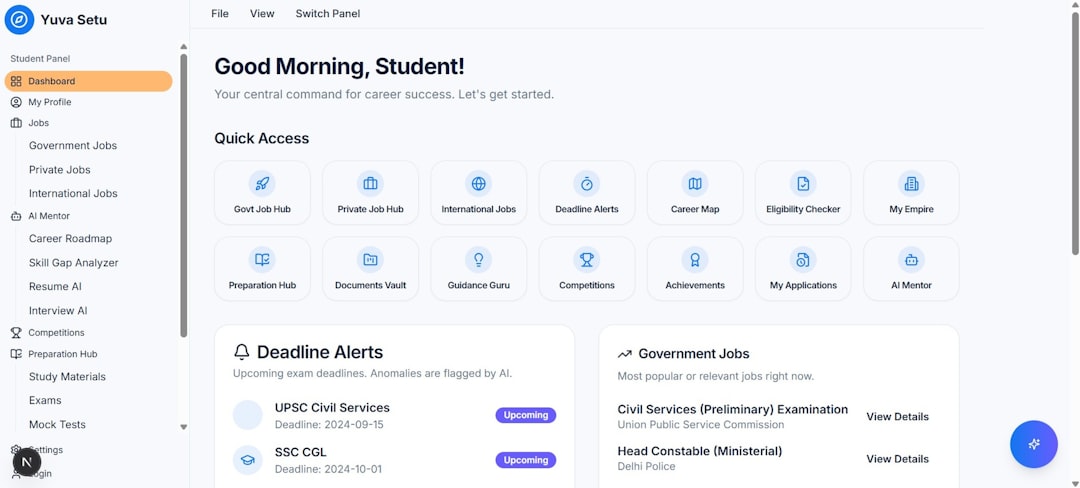
Explaining software becomes easier with arrows and notes. Visual guidance improves learning.
Developers and QA Testers
Bug reporting becomes clear and accurate. No guessing.
Designers
Feedback becomes direct. Instead of vague comments, designers can point to exact pixels.
Content Creators
Create tutorials for:
- YouTube
- Blogs
- Online courses
- Social media
Well-annotated visuals improve engagement.
Benefits of Using Browser Extensions Instead of Desktop Apps
You might wonder, why not just use heavy editing software?
Here’s why extensions win:
- Fast installation
- No complex setup
- Quick access in browser
- Lightweight performance
- Instant editing
Desktop apps are powerful. But for daily screenshots, they can feel like overkill.
Best Practices for Clean Annotations
Annotations should help. Not confuse.
Follow these simple tips:
Keep It Minimal
Don’t add too many arrows. Focus on what matters.
Use Consistent Colors
Example:
- Red for errors
- Green for correct actions
- Yellow for attention
Make Text Short
Use small phrases, not long paragraphs.
Blur Smartly
Always double-check sensitive info before sharing.
Security and Privacy Considerations
Since these extensions can access web pages, choose trusted providers.
Check:
- User reviews
- Permission requests
- Privacy policies
Avoid extensions asking for unnecessary permissions.
The Future of Screen Annotation
Screen annotation tools are evolving.
New features include:
- AI-powered smart highlights
- Automatic sensitive data blur
- Voice-to-text annotations
- Real-time team collaboration

Imagine taking a screenshot and the tool automatically suggests where to add arrows. That future is very close.
Free vs Paid: Which Should You Choose?
Free versions are great for:
- Occasional use
- Basic screenshots
- Simple annotations
Paid versions are better for:
- Teams
- Advanced editing
- Brand customization
- Large storage needs
If you annotate daily, upgrading may be worth it.
Final Thoughts
Screen annotation extensions are small tools with big impact. They turn plain screenshots into powerful communication assets.
They reduce confusion. They speed up workflows. They improve teamwork.
Whether you’re a student, developer, marketer, or support agent, these tools can simplify your digital life.
Start simple. Try one extension. Capture your screen. Add a few arrows. Share it.
You’ll quickly see how something so small can make your communication so much clearer.
Because sometimes, one well-placed arrow says more than a hundred words.