Ever felt like your Google TV watchlist is as messy as that drawer filled with random cables? Don’t worry — you’re not alone. Whether you’re a movie addict, a show binger, or just dipping your toes into streaming, your watchlist can quickly get crowded. But with a few tricks and tips, you can turn this digital chaos into a well-oiled entertainment machine.
TLDR: You can add or remove shows and movies from your Google TV watchlist in just a few taps. Keep things organized by regularly updating it from any device. Want to find content faster? Use voice search and personalized recommendations. It’s easy, fun, and helps you watch what you love without scrolling forever.
What is the Google TV Watchlist Anyway?
Think of it like a digital “to-watch” list. Instead of scribbling titles in a notebook or saving them in your notes app, you can just click and save across devices. Movies, seasons, single episodes — all nicely tucked into one easy-to-find place.
When you see something interesting while browsing or Googling, just click “Watchlist” and boom — it’s saved! Google TV brings it all together whether you’re on your phone, laptop, or smart TV.
How to Add Titles to Your Watchlist
Adding stuff is super simple. Here’s how to do it:
- On your TV: Find a show or movie and click the “+ Watchlist” button.
- On Google search: Looking up a title? You’ll see a watchlist button underneath the info panel. Tap it!
- Using your phone: The Google TV app lets you browse and save new content from anywhere.
You can even say, “Hey Google, add [movie name] to my watchlist.” It’s like having a robot sidekick who loves the same stuff you do.
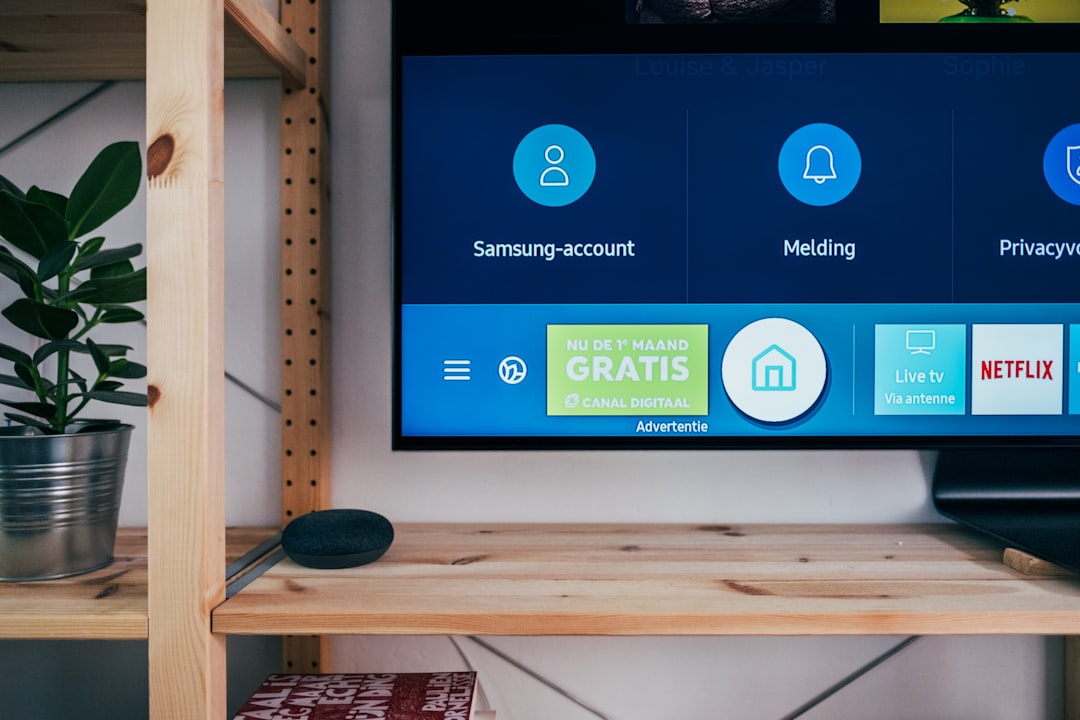
How to View Your Watchlist
Ready to pick your next movie night feature? Your watchlist is just a few taps away:
- On your TV: Scroll to the Library or For You tab. Boom — there’s your list.
- On your phone: Open the Google TV app and tap Library at the bottom.
- On the web: Visit Google Search, look up your name or a title, and your list will show up in results (if you’re signed in).
Tip: You can filter by genre, release date, or even streaming platform. Feeling like sci-fi tonight? Just narrow it down!
Removing Titles You’ve Already Seen
We all have that one show we added a year ago… and never touched. Time to clean house!
- Go to your watchlist.
- Find the title that no longer sparks joy.
- Click or tap the checkmark or “✓ Watchlisted” button to remove it.
Now you’ve got space for fresh content! Think of it like doing spring cleaning, but fun and way faster.
Organizing Your Watchlist Like a Pro
Right now, your list shows newest items first. But you can use some ninja tricks to make it smarter:
- Use the “Sort” filter: Sort alphabetically or by release date to make searching easier.
- Categorize in your head: Group by mood — action flicks for Friday night, chill documentaries for Sunday, you get the idea.
- Use personalized recommendations: Google gets smarter the more you use it. The content it shows you improves over time.
Bonus tip: Regularly prune your list, like tending a digital garden. Keep it fresh and fun.
Voice Control Tips
Why type when you can talk? Google Assistant makes it easier than ever. Try saying:
- “What’s on my watchlist?”
- “Add [show/movie name] to my watchlist”
- “Remove [title] from my watchlist”
It’s especially handy when you’re already snuggled into the couch with popcorn in hand.
Sharing Recommendations
Found something amazing? Share the joy!
While Google TV doesn’t yet let you directly share your whole watchlist, you can easily send links to individual titles via messaging or social media. Just tap the share icon if you’re using the Google TV app or Google Search.
You can also set up shared viewing lists with friends using third-party apps like Google Docs or Trello. Friendship, powered by good taste in shows!
Troubleshooting Common Issues
Sometimes even Google TV gets a little weird. Here’s how to fix common hiccups:
- Can’t find a show you added? Sometimes content shifts platforms. Check that it’s still available on your region’s streaming services.
- Watchlist not syncing? Make sure you’re using the same Google account on all devices.
- Getting odd recommendations? Watch more of what you like. Over time, suggestions will get smarter.
If all else fails, a quick sign-out and sign-back-in usually does the trick.

Why Bother Managing Your Watchlist?
Let’s be honest. Streaming platforms are overwhelming. New releases here, Oscar nominations there, binge-worthy series everywhere! Without a watchlist, it’s easy to forget what you wanted to see in the first place.
Keeping your list organized means less scrolling, more watching. It also helps you make the most of your subscriptions. Why pay for three services and forget what they even offer?
Cool Bonus Features You Should Know
Google TV has some tricks up its sleeve. Check these out:
- See where a title is streaming: Google tells you if it’s on Netflix, Hulu, Disney+, or wherever else — no more app-hopping.
- Set reminders: Google can notify you when something on your list becomes available.
- Family-friendly sorting: Use parental controls to make watchlists kid-safe.
These extras make watchlist management feel less like a chore and more like a smart, custom TV concierge.
Final Thoughts
Your Google TV watchlist is more than just a list. It’s your digital entertainment memory. A place for the shows you swear you’ll get around to. The movies your best friend told you about. That random documentary you actually kind of want to watch.
With a little organizing, your watchlist becomes a launchpad for joy — whether it’s a midnight Marvel marathon or a rainy-day rom-com fest. Keep it clean, use it often, and let your binge-watching karma soar.
So grab that remote, tidy up your list, and happy streaming!