The Seagate ST8000DM004 is a high-capacity, 8TB hard drive that has become quite popular among those seeking ample storage for their desktop systems, NAS setups, or backups. But if you’ve suddenly discovered that your ST8000DM004 has stopped working, you’re not alone. Like any mechanical device, even a high-quality hard drive can fail due to physical wear, firmware issues, power problems, or bad sectors.
TL;DR
The ST8000DM004 might stop working due to various reasons such as power failure, corrupted firmware, connection issues, or physical damage. Start with basic steps like checking cables and power sources, then proceed to run diagnostics and recovery tools. Regular backups are crucial. If all else fails, consult a data recovery professional before attempting risky fixes yourself.
Common Symptoms of a Failed ST8000DM004
Before diving into fixes, it’s important to recognize the signs that your ST8000DM004 might be failing or has already failed. Here are a few common symptoms:
- Unusual clicking or beeping sounds from the drive
- Drive not recognized by the BIOS or operating system
- Slow file access or frequent system freezes
- Errors during file transfers or reads/writes
Understanding these symptoms can help you determine whether it’s a minor glitch or something more serious that requires expert help.
Step-by-Step Troubleshooting Guide
Let’s walk through several ways you can try to bring your ST8000DM004 hard drive back to life.
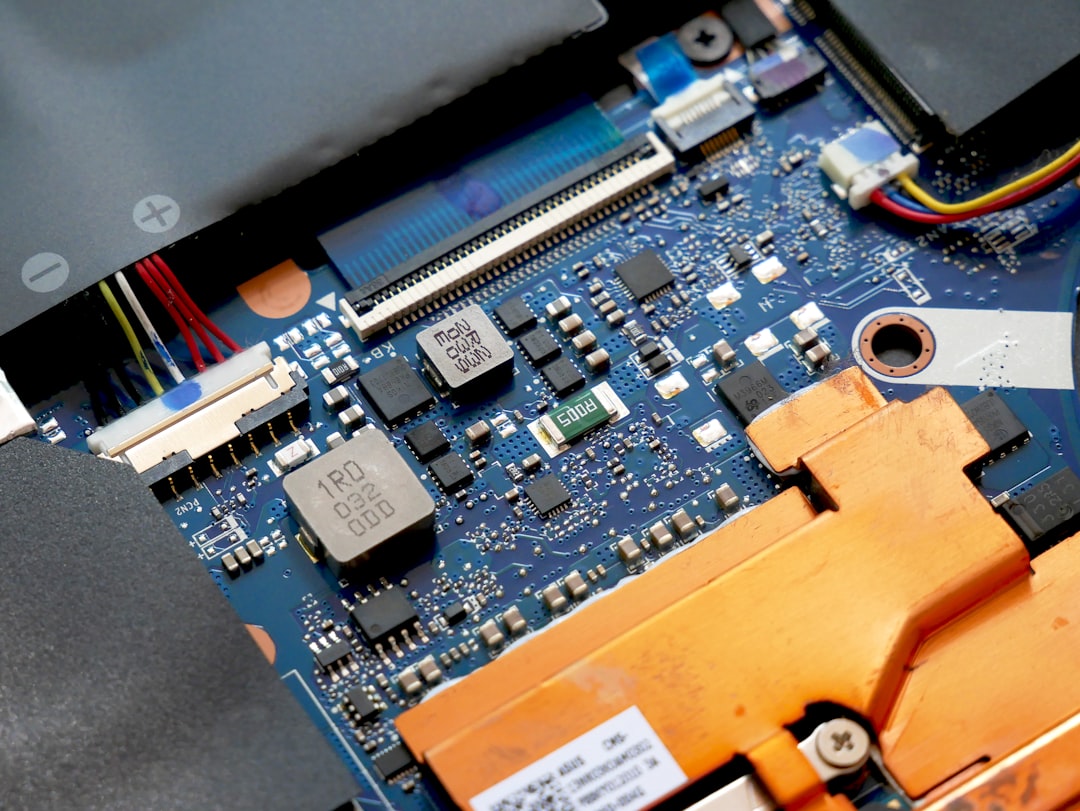
1. Check Physical Connections
Sometimes the simplest solutions are the most effective. Ensure that the power and SATA cables are properly connected. Try the following:
- Reconnect all cables and make sure the drive is receiving power
- Use different SATA ports on the motherboard
- Swap out the cables to eliminate the possibility of a faulty wire
Also, test the drive on another computer to rule out system-based issues.
2. Listen for Diagnostic Clues
The sound your drive makes can offer crucial clues. For instance:
- Clicking noises usually indicate physical damage or failure of the read/write head
- No spinning sound might mean power supply issues or PCB failure
- Whirring up then down repetitively could signal firmware or mechanical issues
If the drive is completely silent, you may have a more serious electrical issue on your hands.
3. Run Drive Diagnostics
Assuming your computer recognizes the drive, download and run SeaTools for Windows, Seagate’s own diagnostic utility. This tool can help identify bad sectors and attempt to repair minor issues.
Steps:
- Download and install SeaTools
- Select the ST8000DM004 from the list of available drives
- Run the “Short Drive Self Test” or “Long Generic Test”
If SeaTools flags major drive errors, back up whatever data you still can immediately and prepare for recovery efforts.
4. Try Safe Recovery via Disk Management
If the drive is visible in Windows Disk Management but not in File Explorer, it might be a partition or file system issue. Here’s what to do:
- Right-click the Start button and select Disk Management
- Locate the ST8000DM004
- If it’s listed as “RAW” or “Unallocated,” it may just require reformatting
Warning: Reformatting will erase data. If the data is important, avoid formatting and proceed to recovery techniques instead.
5. Use Data Recovery Software
If the drive is physically fine but data seems to be lost or the drive is inaccessible, you can try third-party recovery tools such as:
- Recuva
- EaseUS Data Recovery
- R-Studio
- Disk Drill
These programs can help recover deleted files, restore corrupted partitions, or clone the disk for further analysis. Use them carefully and avoid writing new data to the drive during recovery.
6. Update Firmware
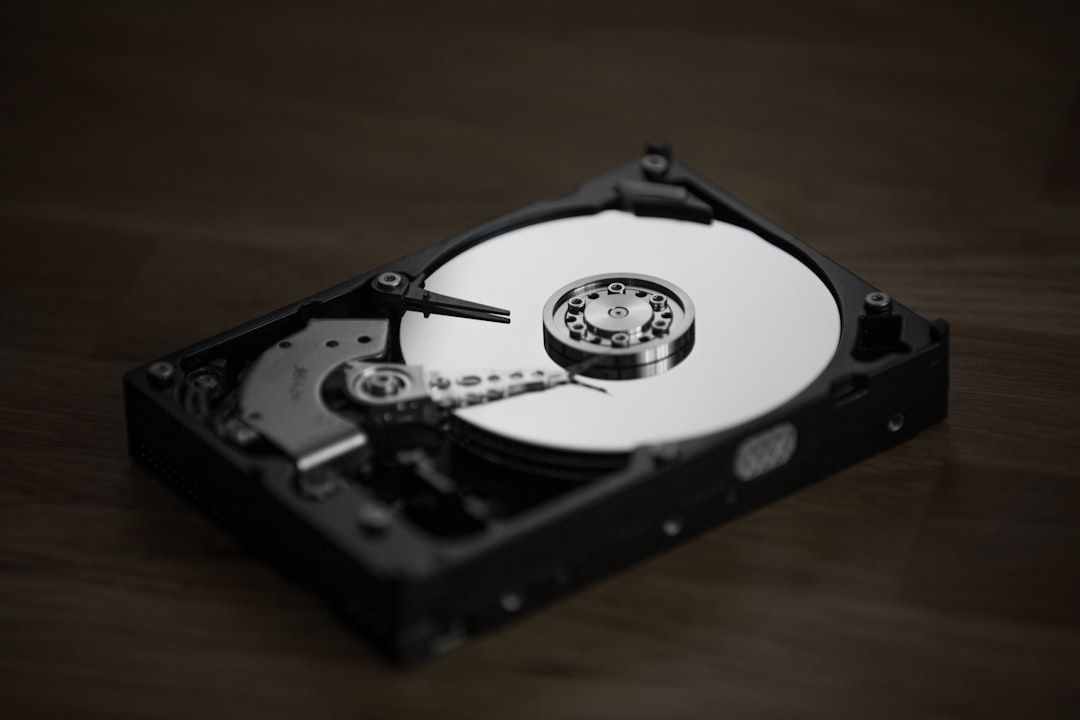
Outdated or corrupt firmware can cause the ST8000DM004 to misbehave. Visit Seagate’s official support page and check for any firmware updates for your model.
Steps:
- Download the recommended firmware update utility
- Follow the on-screen instructions carefully
- Reboot the system once completed
Note: Firmware updates can be risky. An interrupted update can brick your drive. Use a reliable power source and only update if you’re confident it addresses known drive issues.
7. Freeze Method: Myth or Miracle?
You may have heard of putting a hard drive in the freezer. This method is controversial and should only be considered a last resort when all other options (including professional recovery) are unavailable.
- Place the drive in an anti-static bag
- Leave it in the freezer for 2–3 hours
- Quickly connect it to a computer and attempt data recovery
This trick sometimes works due to thermal contraction affecting stuck components, but it comes with risks—especially the buildup of condensation.
When to Call a Professional
If you’ve tried the above steps and the drive is still unresponsive, it’s time to get professional help. Data recovery services may be expensive, but they offer the best chance of retrieving valuable data. Some things only the pros should handle:
- Firmware corruption that requires specialized tools
- PCB replacement and micro-soldering
- Failed read/write heads or platter damage
Reputable companies like Ontrack, DriveSavers, and Gillware offer free diagnostics and only charge if recovery is successful.
How to Prevent Future Failures
Whether you manage to revive your ST8000DM004 or replace it with a new one, these best practices can help protect you from future drive failures:
- Regularly back up important data using cloud, external, or NAS storage
- Avoid sudden power-offs or fluctuations by using a UPS system
- Monitor drive health with tools like CrystalDiskInfo or Hard Disk Sentinel
- Keep the system well-ventilated to avoid overheating
Conclusion
The Seagate ST8000DM004 is a robust drive, but like any hardware, it’s not immune to failure. From power outages to firmware bugs, a range of issues can stop it from working correctly. By methodically checking cables, listening for sounds, running diagnostics, and considering recovery tools, there’s a good chance you can identify and even fix the issue. And whether you succeed or not, this experience serves as a crucial reminder: always back up your important data.