Modern HP laptops are designed with both functionality and user comfort in mind. One essential feature that significantly enhances the user experience, especially in low-light settings, is the backlit keyboard. Whether you’re working late at night or in a dimly lit environment, the illuminated keys can make all the difference. But not all users know how to activate this feature or whether their device even supports it.
TL;DR: Most HP laptops with backlit keyboards allow you to activate the light using a function key, commonly F5 or F4, often requiring you to hold the Fn key. If the keyboard light doesn’t work, check your system BIOS or HP Command Center for settings. Always ensure your keyboard supports backlighting, as not all HP models include this feature. If you’re unsure, consult your laptop’s user manual or support page.
Does Your HP Laptop Have a Backlit Keyboard?
Before trying to turn on a keyboard light, it’s important to confirm whether your HP laptop supports backlit functionality. Not every HP model includes this feature. You can determine this by:
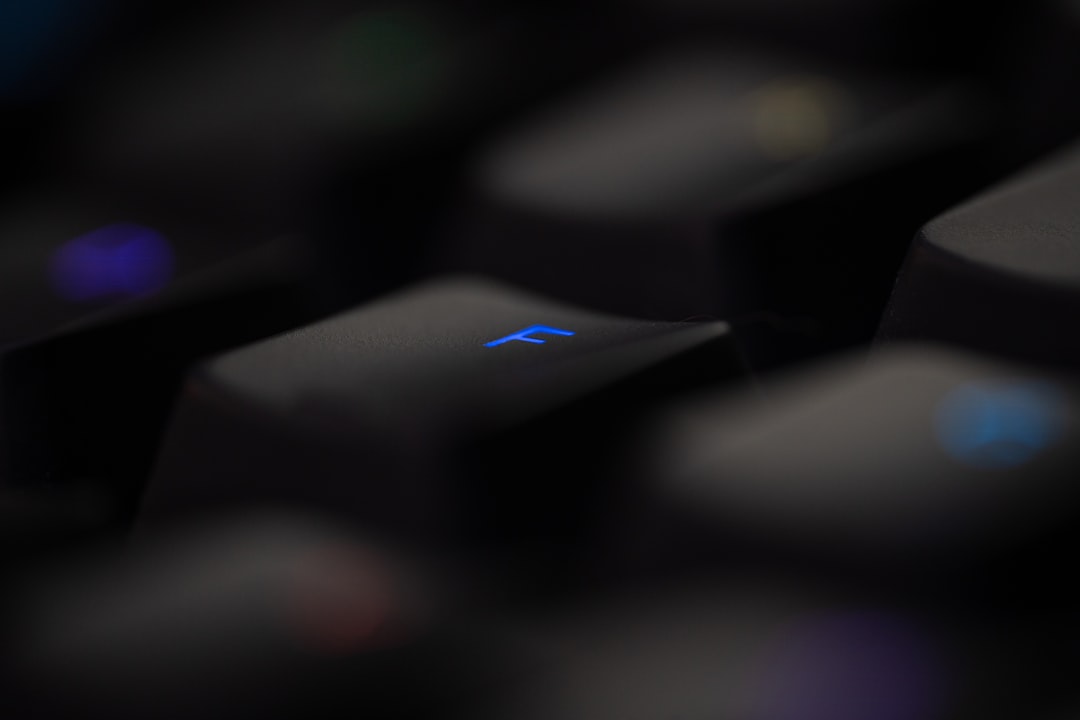
- Examining the keyboard: Look for an icon of a glowing keyboard on one of the function keys (typically F3, F4, or F5). This icon often resembles a small square with rays coming out of it.
- Consulting the manual or specification sheet: Search for your laptop model on the official HP website or check the documentation that came with your device.
- HP Support Assistant: Open the HP Support Assistant on your device and explore the features section to verify hardware capabilities.
If your laptop does not support a backlit keyboard, enabling this feature isn’t an option unless additional hardware modifications are made—which may void warranties and are generally not recommended.
How to Turn On the Keyboard Light
If your HP laptop includes a backlit keyboard, enabling it is usually straightforward. Follow the steps below:
1. Use the Keyboard Shortcut
Most HP laptops enable keyboard lighting via a function key. Try the following key combinations:
- Press the designated function key: Usually F5 or F4. Look for a keyboard light symbol.
- Use the Fn key: If the light doesn’t turn on with a single keypress, hold down the Fn key (usually located near the bottom-left of the keyboard), and then press the backlight key. For example, press Fn + F5.
Some laptops allow cycling through different brightness levels by pressing the key multiple times. For instance:
Off → Low → Medium → High → Off
This gives you control over the brightness depending on ambient lighting conditions and personal preference.
2. Use HP Command Center (If Available)
HP has integrated the HP Command Center into several of its Windows-based laptops, particularly from the Spectre and Pavilion lines. You can adjust keyboard lighting settings through this utility.
To open HP Command Center:
- Click on the Start Menu and search for HP Command Center.
- Navigate to the Keyboard or Lighting tab (availability may vary by model).
- Adjust settings such as brightness levels and timeout preferences.
This interface often includes additional personalization options, like assigning lighting zones or automatic activation of keyboard backlight when typing.
3. Enable Backlight through BIOS
Some HP laptops require a BIOS configuration to enable the keyboard backlight. To access the BIOS settings:
- Restart your computer.
- As it boots, press the Esc key repeatedly (or F10 on certain models) until the BIOS menu appears.
- Navigate using the arrow keys to the Advanced tab.
- Look for an option labeled Keyboard Backlighting or Built-In Device Options.
- If set to “Disabled,” change it to “Enabled,” then press F10 to save and exit.
Be cautious when changing BIOS settings. Only modify options you are certain about to avoid system instability.
Troubleshooting Keyboard Backlight Issues
If the keyboard light isn’t working as expected, consider the following troubleshooting steps:
1. Check for Software Updates
Sometimes, outdated drivers or software can prevent the backlight from functioning. Use HP Support Assistant or Windows Update to check for:
- Keyboard drivers
- BIOS updates
- System utilities
Always restart your device after installing updates to apply changes effectively.
2. Power Cycle Your Laptop
- Shut down your HP laptop completely.
- Unplug the power adapter and remove external devices.
- If possible, remove the battery (for detachable models).
- Hold the power button for 15 seconds to discharge static power.
- Reconnect everything and power on the device.
This simple procedure can resolve temporary device glitches, including lighting issues.
3. Use HP Diagnostics Tools
HP provides built-in diagnostic tools to identify hardware issues:
- Turn off the laptop.
- Turn it back on and immediately press Esc + F2.
- This will launch HP’s diagnostics menu. Select Component Tests → Keyboard.
If the test fails or doesn’t respond to lighting commands, you may be dealing with a hardware issue that requires professional assistance.
How to Customize Keyboard Light Behavior
Beyond simply turning the keyboard light on or off, many HP laptops allow additional customization:
- Automatic timeout: Set how long the light remains on after the last keypress (useful for conserving battery).
- Brightness levels: Adjust levels depending on lighting conditions.
- Accent lighting: On premium models, you may be able to customize RGB zones or specific keys (e.g., HP OMEN laptops).
To manage these options, revisit either the BIOS settings or the HP Command Center, depending on your laptop model.
When the Keyboard Light Still Doesn’t Work
After exhausting all troubleshooting methods, if the keyboard backlight still fails to operate, these are likely causes:
- Hardware malfunction: The backlight circuit may be physically damaged.
- Unsupported model: You may have a model that does not feature a backlit keyboard.
In such cases, it’s advisable to:
- Contact HP Support for a device-specific diagnosis.
- Check your warranty status via the HP support portal.
Steer clear of third-party modifications or external software that claim to enable backlighting—they may compromise system integrity and void your warranty.
Conclusion
The keyboard backlight on HP laptops is a valuable feature for enhancing productivity in low-light settings. Activating and managing it is a simple task if you understand the keys and tools provided. From using function key shortcuts to diving into the BIOS or HP Command Center, there are multiple pathways to controlling keyboard lighting depending on your laptop model and configuration. Always be certain about your system’s specifications and avoid risky modifications. For persistent issues, rely on official HP diagnostics and support channels to keep your device performing reliably.