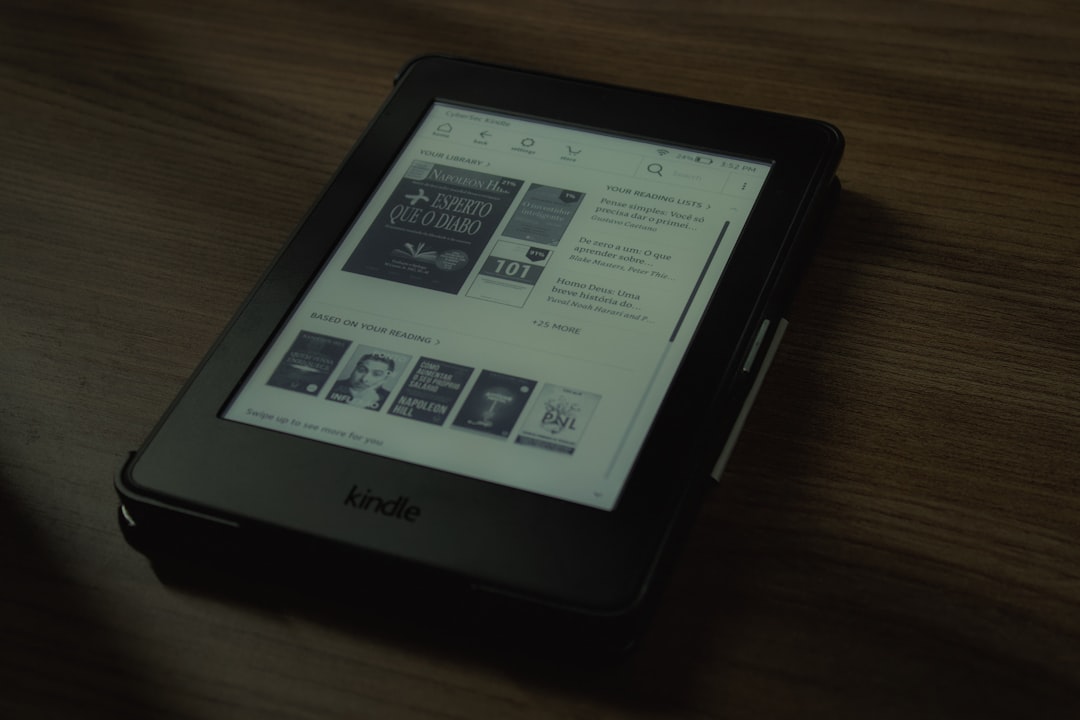
Kindle offers a convenient digital reading experience across devices, including laptops. However, many users find the suggested book recommendations cluttered or irrelevant. Whether you’re trying to streamline your reading interface or maintain your privacy, removing book recommendations from your Kindle interface on a laptop can help declutter your screen and enhance your focus.
TLDR
To remove book recommendations from Kindle when using a laptop, users can adjust several settings through their Amazon account. This includes disabling personalized recommendations and clearing their browsing or purchase history. Though the options may not be directly labeled as “remove recommendations,” several workarounds can reduce or eliminate these suggestions. These methods can be easily executed through the browser interface of Amazon.
Understanding Kindle Recommendations on Laptop
When accessing Kindle content from a laptop, users typically interact with the Amazon website or Kindle Cloud Reader. Recommendations often appear in:
- The Kindle section of the Amazon homepage
- The “Recommended for You” section on product pages
- The Kindle Cloud Reader home screen
These suggestions are based on various data points including:
- Your reading history
- Purchases and browsing habits
- Books you’ve rated or reviewed
While these recommendations can be useful, many users prefer a cleaner, more private interface.
Steps to Remove Book Recommendations from Kindle on Laptop
There’s no one-click “turn off all recommendations” button, but users can still reduce or eliminate book suggestions by adjusting a few key account settings and deleting existing data.
1. Disable Personalized Recommendations
Amazon uses a variety of signals to tailor your experience. Disabling these settings will significantly reduce the recommended content shown on your Kindle-related pages.
- Log in to your Amazon account via your laptop.
- Click on Accounts & Lists on the top right corner and select Your Content and Devices.
- Go to the Preferences tab.
- Scroll down to the section labeled Personalized Recommendations.
- Click Do not use my browsing history to personalize recommendations.
This action instructs Amazon to stop customizing your suggestions based on your online behavior.
2. Clear Browsing and Watch History
Your browsing history fuels the recommendation algorithms. To clear it:
- Hover over Browsing History at the top of the Amazon homepage.
- Select View and Edit.
- Click on Remove all items.
- Toggle off Turn Browsing History On/Off to permanently stop it from recording your activity.
This prevents Amazon from collecting further data that could influence future suggestions.
3. Manage Kindle Recommendations via “Improve Your Recommendations”
Amazon maintains a section where you can fine-tune what gets recommended. Here’s how to access and configure it:
- Click Accounts & Lists and navigate to Your Recommendations.
- Select Improve Your Recommendations on the left menu.
- Uncheck any books, genres, or categories you’re not interested in.
- Click Done to save your selections.
While this doesn’t remove all recommendations, it minimizes irrelevant ones.
4. Remove Specific Recommended Titles
If there’s a specific book or genre appearing you want to avoid seeing again:
- Go to the “Recommended for You” section.
- Hover over the title you don’t want recommended.
- Select Not interested or Don’t recommend this from the dropdown menu.
This also helps train Amazon to better understand your preferences—or avoid showing recommendations altogether when applied repeatedly.
5. Hide Recommendations on Kindle Cloud Reader
If you’re using Kindle Cloud Reader via your laptop browser, minimal recommendations will appear, mostly limited to:
- Your current reading progress
- Suggestions from your existing library
To minimize distractions here:
- Select Library View instead of Home Recommendations.
- Use a browser extension or ad blocker capable of hiding specific page elements.
Note that browser extensions should be used cautiously and from reputable sources.
6. Remove “Recommended” Books from Kindle Library
Sometimes, books labeled as “Free Recommendation” appear in your Kindle library. To remove them:
- Visit Your Content and Devices from your Amazon account.
- Filter by Books.
- Check the box next to any unwanted titles.
- Click Delete from the toolbar.
This step ensures those books are fully removed from all linked Kindle apps and devices.
Additional Tips for a Clean Kindle Interface
Here are a few bonus tips Kindle laptop users can implement to keep their digital reading experience distraction-free:
- Use Collections: Organize your Kindle books into collections to keep your library clean and structured.
- Download Only What You Need: Avoid downloading every purchased book directly to your Kindle or Cloud Reader unless needed.
- Regularly Review Your Library: Remove or archive titles you no longer plan to read.
Conclusion
While Amazon does not allow an outright removal of all book recommendations in one sweep, a combination of steps can significantly reduce or even eliminate them. Whether it’s turning off browsing history, removing specific titles, or adjusting recommendation inputs, users have a good level of control over what appears on their Kindle interface.
By taking advantage of Amazon’s privacy and recommendation management tools, users can customize their Kindle experience to be as clutter-free and tailored as they want—especially when accessing Kindle from a laptop.
FAQ
- Q: Can I completely disable all book recommendations on Kindle?
A: Not entirely, but you can significantly reduce them by clearing browsing history and adjusting your recommendation settings. - Q: Will these changes affect what I see on my Kindle mobile app or physical Kindle device?
A: Yes. Most settings apply across all devices linked to the same Amazon account, including mobile apps and e-readers. - Q: Is there a browser extension to hide Kindle recommendations?
A: Yes, some ad-blockers and custom CSS tools can be used to hide panels, but they require cautious use and basic configuration. - Q: Do recommendations return if I re-enable browsing history?
A: Yes, once browsing history is back on, Amazon will start tailoring suggestions again based on your behavior. - Q: Can I remove recommendations from the Kindle Cloud Reader?
A: You cannot completely disable them, but switching to Library View significantly minimizes their presence.