Use Inxi when you need real Ubuntu system details, and use Neofetch when you want a clean, pretty version snapshot. If your goal is “Ubuntu get version,” both tools work, but they serve different moods. Ubuntu 24.04 LTS, for example, gets standard support until 2029, so checking your exact version matters before installs and upgrades [source: Ubuntu].
TLDR: Neofetch is best for quick screenshots and simple checks, like seeing Ubuntu 24.04 LTS beside a lovely ASCII logo. Inxi is better for support, repairs, drivers, and hardware checks. In a small admin task, Neofetch may answer your version question in about 2 seconds, while Inxi may take 5 to 8 seconds but gives 5 times more useful detail. If you are fixing Wi Fi, graphics, disks, or kernel issues, use inxi -Fxxx.
What does “Ubuntu get version” really mean?
People ask this for many reasons.
- They want to know if they run Ubuntu 22.04 or 24.04.
- They need the kernel version.
- They are checking a laptop before installing drivers.
- They are following a guide and need the right commands.
Built in commands can do this too. Try:
lsb_release -a
hostnamectl
cat /etc/os-release
These are fine. They are fast. They are boring. That is where Neofetch and Inxi walk in, wearing very different shoes.
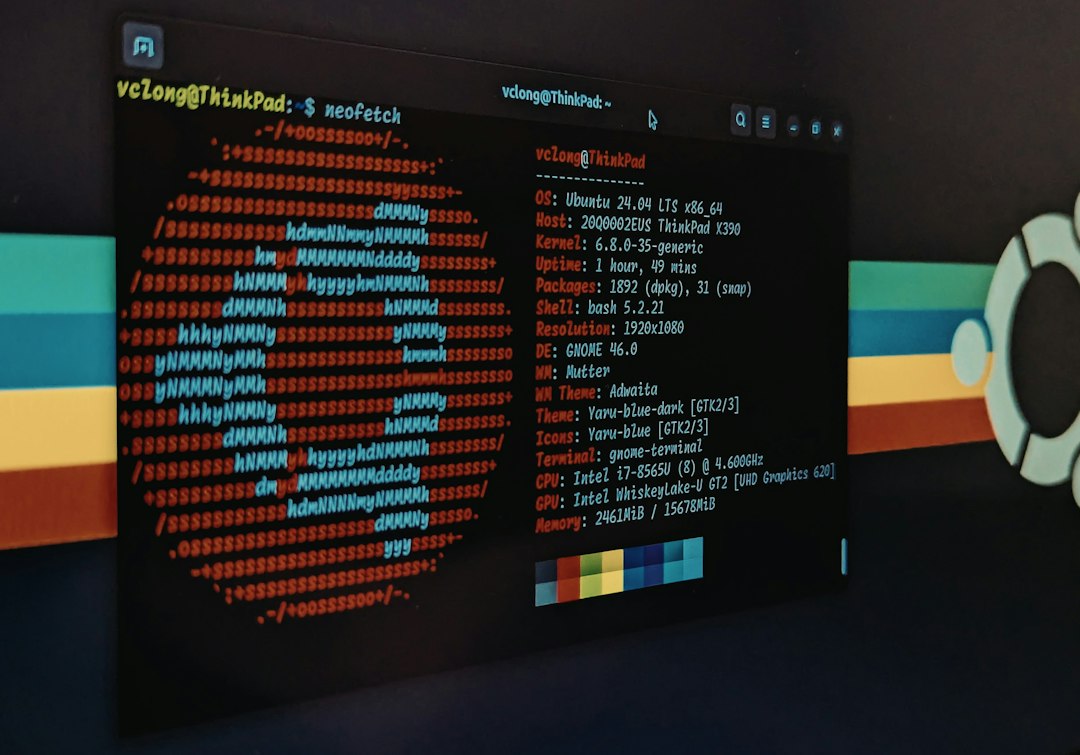
Neofetch: the fun poster on your terminal wall
Neofetch shows your Ubuntu version, kernel, desktop, CPU, GPU, memory, shell, and theme. It also shows an ASCII Ubuntu logo. Yes, it is mostly for looks. No shame. We all like nice terminal screenshots.
Install it like this:
sudo apt update
sudo apt install neofetch
Run it:
neofetchYou may see something like:
OS: Ubuntu 24.04 LTS x86_64
Kernel: 6.8.0-xx-generic
DE: GNOME
CPU: Intel i5
Memory: 2134MiB / 15800MiB
Best use: quick checks, screenshots, friendly reports, and “what machine am I on?” moments.
Honestly, it feels like Neofetch was built for that one friend who says, “send me your specs,” then judges your terminal theme too.
There is one annoying bit. Neofetch is no longer actively maintained, and its GitHub repo was archived in 2024 [source: GitHub]. It still works for many users. But long term, that makes Inxi feel safer.
Inxi: the mechanic with a flashlight
Inxi is not as pretty. It is more useful. It gives deep system details in a format that helps real troubleshooting.
Install it:
sudo apt update
sudo apt install inxi
Run the popular full report:
inxi -FxxxWant safer output for forums? Use this:
inxi -FxxxzThe -z option hides some private details. Good. Nobody needs your MAC address in a public help thread.
Inxi can show:
- Ubuntu version and system base.
- Kernel and boot mode.
- CPU model, speed, and cores.
- Graphics driver and display server.
- Audio devices.
- Network hardware.
- Drives, partitions, and file systems.
- Temperatures, sensors, and fan data, if available.
Best use: fixing problems. If Ubuntu has no sound, weird graphics, broken Wi Fi, or mystery freezes, Inxi is the better tool.
Neofetch vs Inxi: quick comparison
- Looks: Neofetch wins. It is clean and fun.
- Detail: Inxi wins by a lot.
- Speed: Neofetch is usually faster.
- Privacy: Inxi wins with
-z. - Support forums: Inxi wins. Helpers get better info.
- Screenshots: Neofetch wins. It was born for that.
Which one should you use?
Use Neofetch if your question is simple:
- “What Ubuntu version am I using?”
- “What desktop am I running?”
- “How much RAM does this machine have?”
Use Inxi if your question has pain in it:
- “Why is my Nvidia driver acting strange?”
- “Why is Wi Fi missing?”
- “Is this system booting in UEFI mode?”
- “Which disk is almost full?”
It drives me crazy when a guide says “check your Linux version” and then gives no clue what to check. Version alone is not always enough. Kernel, driver, CPU, and desktop session can change the answer.
A simple rule
If you are alone and curious, run:
neofetchIf you are asking for help, run:
inxi -FxxxzCopy the output. Share it. Save everyone 15 minutes of guessing.
Where this helps in real life
Say you are installing tools on Ubuntu 24.04. You should first confirm your release and CPU type. This matters for packages, repos, and scripts. If you are setting up cloud tooling, check your system before following a guide like installing Terraform on Ubuntu 24.04.
Or maybe you are handling old email archives. Linux version details can help when choosing apps and dependencies. That can matter when you need to view MBOX files on Windows, Mac, and Linux.
Ubuntu also shows up in smaller places. Routers can run Linux based firmware too. If that sounds interesting, read about OpenWrt and Linux based router firmware.

Final pick
Neofetch is the friendly face. It answers fast. It looks nice. It is great for a quick Ubuntu version check.
Inxi is the serious toolbox. It gives better detail. It is better for fixes. It is the one to use when things get weird.
So keep both installed if you like. Use Neofetch for the smile. Use Inxi for the answer.