Reset your escape room booking test site before you trust any reservation plugin with real customers. WordPress powers about 43% of all websites, so testing booking tools on it is normal, but plugin trials can leave messy data behind fast [source: W3Techs].
TLDR: Use WP Reset to clean your WordPress test site after trying online reservation and ticketing plugins. For example, if you tested 4 booking plugins and each created 8 custom tables, your database may now hold 32 extra tables before you even sell a ticket. A clean reset helps you test again without fake bookings, broken checkout pages, or old settings confusing the results. Take a snapshot first, then reset only when you are sure the test data can go.
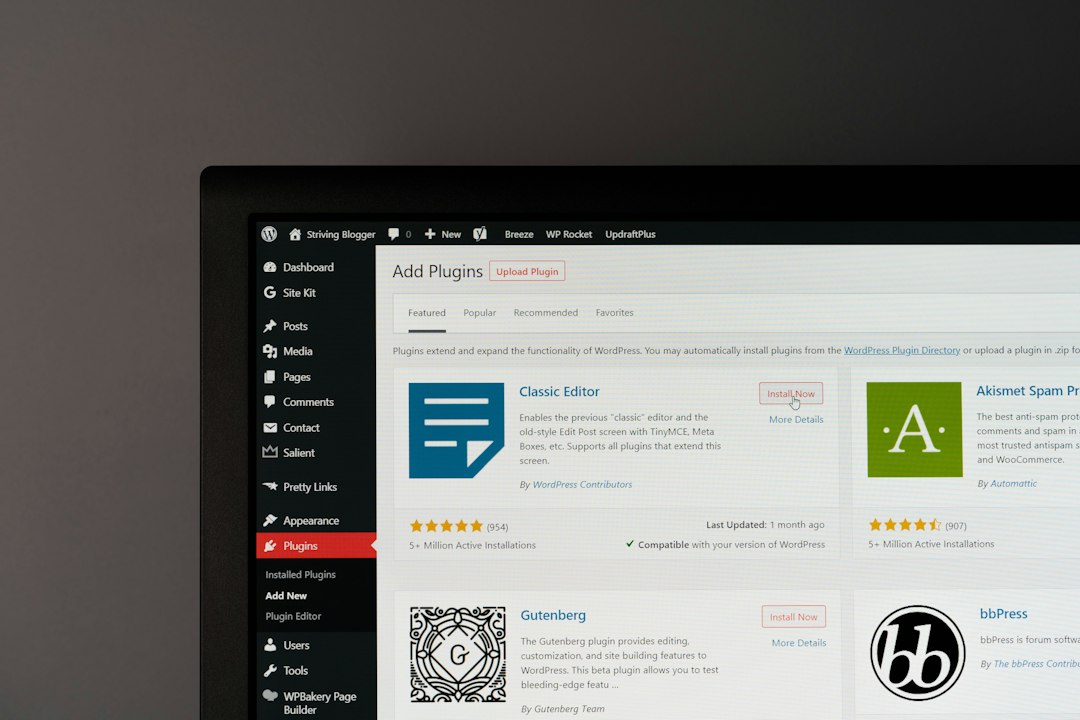
Why escape room booking tests get messy
Escape room websites are not simple brochure sites. They often need time slots, group limits, deposits, coupon codes, waivers, and ticket emails. One plugin may handle room capacity well. Another may have better Stripe support. A third may look nicer on mobile.
So you test. Then you test more. That is where the trouble starts.
Booking plugins often create their own database tables. They add pages, shortcodes, user roles, cron jobs, email templates, and payment settings. Some clean up after uninstall. Many do not. Honestly, it feels like some plugins leave crumbs everywhere just to make your next test weird.
You may see ghost reservations. Test customers may still appear in reports. Old ticket emails may fire at the wrong time. A checkout page may keep using a shortcode from a plugin you deleted two days ago. It drives me crazy that one “simple” plugin test can add 10 minutes of cleanup before the next test even starts.
Why WP Reset fits this job
WP Reset is built for cases like this. It helps you return a WordPress site to a clean state without reinstalling WordPress by hand. The plugin can reset the database, remove test content, and give you a fresh base for another round of plugin testing.
The plugin page says WP Reset is made for testing, debugging, and development work [source: WordPress.org]. That is exactly the situation most escape room owners face when comparing booking systems. You are not trying to publish a blog post. You are trying to answer one practical question: Can customers book a room without calling us?
Important: WP Reset is powerful. Do not run it on a live site unless you fully understand what will be removed. Use it on a staging site, test site, or local copy.
A smart reset workflow after plugin testing
Before resetting anything, slow down for five minutes. A rushed reset can erase useful setup notes. Use this basic process:
- Write down what you tested. Note the booking plugin name, payment gateway, calendar view, email behavior, and any problems.
- Export useful settings. If a plugin has an export option, save the file. You may want it later.
- Take a snapshot in WP Reset. This gives you a safer rollback point before major changes.
- Confirm you are not on the live site. Check the URL twice. Then check it again.
- Run the reset. Clear the test content and database clutter.
- Reinstall only what you need. Keep the next test clean and focused.

What to check after the reset
After WP Reset finishes, do not jump straight into the next booking plugin. First, confirm the site is healthy.
- Can you log in as admin?
- Is the active theme correct?
- Are required plugins installed?
- Do permalinks work?
- Is SSL active on the test site?
- Are payment gateways still in test mode?
This matters for escape rooms because booking errors cost real money. If your “Zombie Lab” room has 6 available seats and the plugin allows 11 people to book, that is not a tiny bug. That is a front desk headache on Saturday night.
Common booking data you may need to remove
Testing reservation plugins can leave more than fake names. Look for leftover data such as:
- Fake bookings: Useful during testing, bad for reports.
- Test payments: Stripe or PayPal sandbox records may still appear in plugin logs.
- Old room schedules: These can clash with new availability rules.
- Email templates: Some plugins keep custom emails even after uninstall.
- Shortcode pages: Booking, checkout, cart, and confirmation pages may remain.
- Custom roles: Staff or booking manager roles may stay in WordPress.
WP Reset helps clear the clutter so you can compare each plugin fairly. That fairness matters. A plugin may seem broken when the real problem is an old database table from the last tool you tried.
When not to reset
Do not reset if the site has real bookings, real customers, live orders, or signed waiver data. In that case, create a full backup first and move the work to staging. If your escape room depends on online tickets for weekend revenue, never test major booking changes on the public site.
Also avoid resetting before you collect notes. Screenshots help. So do short screen recordings. If Plugin A loads the booking calendar in 1.2 seconds and Plugin B takes 4.8 seconds, write that down. Small delays feel bigger when customers are booking on phones in a parking lot.
Image not found in postmeta
Final practical tip
Build a repeatable testing kit. Install WordPress, add your theme, add WP Reset, create three sample rooms, and save that setup as your baseline. Then test one booking plugin at a time. Reset between tests. Keep notes in a spreadsheet.
This turns plugin testing from a messy guessing game into a clean process. For an escape room business, that means fewer broken calendars, fewer missed bookings, and a much calmer launch day.